
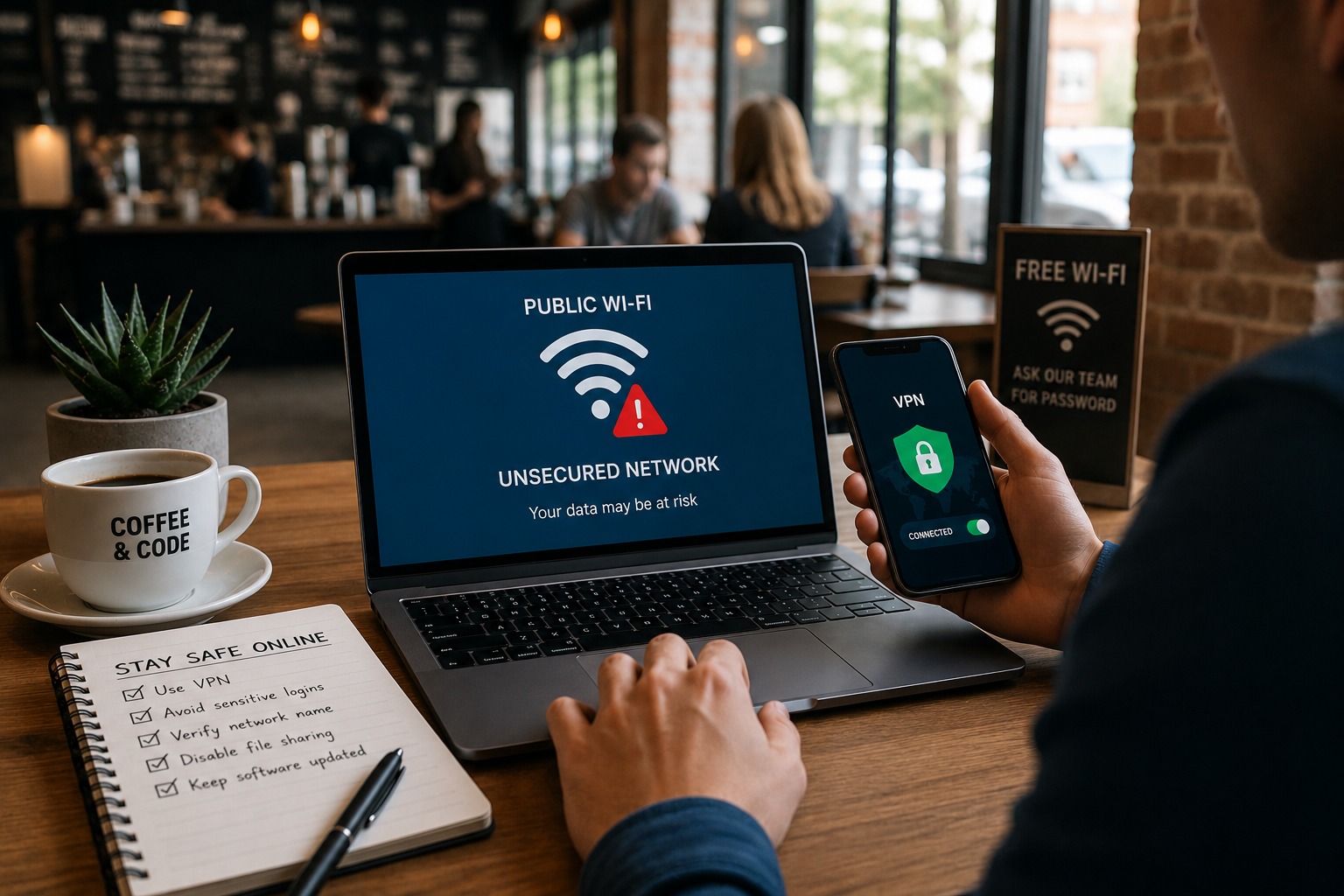
You sip your latte, find a comfortable spot in a corner, and open your laptop. The first thing you do is check the list of available Wi-Fi networks and click on the network that looks a bit like a coffee shop. You are connected within seconds and can commence to work. I know this process all too well, because it used to be my daily morning routine. I loved working carefree at airports, in hotel lobbies, and in local cafes, without considering the invisible data floating in the air.
Public networks are incredibly convenient, but they have inherent vulnerabilities. They are designed for easy access for clients and do not possess the robust security measures of our home networks. If you are not careful, anyone sitting in the same cafe can intercept your data. My behaviour change was not to stop working from home, but to use the internet more efficiently. Here are my five biggest mistakes I used to make on public Wi-Fi networks and how you can avoid them.
Mistake 1: Connecting to an Insecure Network
My biggest mistake was randomly clicking on the first Wi-Fi network that didn’t require a password. I thought I was saving time. But I fell into a classic trap. Security experts call these networks “evil twins”, usually set up by hackers. They buy a cheap router, take it to a public place, and give the network a very convincing name, such as “Cafe_Guest_Free”.
When you connect to their malicious network, your browsing experience is the same as normal. However, all data you send and receive first goes through the hacker’s computer. They can monitor the websites you visit, the messages you send, and the passwords you enter.
I have learned not to connect to public networks at all anymore. There is no padlock icon next to the Wi-Fi symbol. Now I go to the counter and ask the barista for the exact network name and password. If the establishment does not offer password-protected networks, I use my smartphone as a personal mobile hotspot.
Mistake 2: Public Access to Bank Accounts
I used to enthusiastically check my bank balance or pay credit card bills while waiting at the airport. I thought it was completely safe because I used the official bank app. I knew nothing about packet sniffing.
Packet sniffing is a technique that cybercriminals use to intercept unencrypted data packets sent over shared networks. Most bank apps have their own encryption, but the underlying public network connection still has security vulnerabilities. If a hacker intercepts the initial connection handshake or discovers a security vulnerability in the program, they can steal your login credentials.
Now, I have a strict personal rule for myself regarding money transactions. I never use banking apps to pay bills or enter my bank account details. I enter my credit card number via public networks. If I want to check my bank balance while on the go, I turn off Wi-Fi and use mobile data for a moment. This makes it much harder for local hackers to intercept my data.
Mistake 3: Leaving File Sharing Enabled
At home, I always enjoyed the fast connection between my laptop and phone, so I always had AirDrop, network discovery, and file sharing enabled for quickly transferring photos and documents between my devices. “I never thought about turning these features off when I left the house.”
One afternoon, in a busy library, a strange request to transfer a file suddenly appeared from an unknown user. This alarmed me. Enabling network discovery is like your computer sending a signal to all other devices on the same public Wi-Fi network. You are essentially announcing that your digital doors are open and ready to receive data.
This allows criminals to easily send malware directly to your device. That is why I now make sure that when I connect to a public network, I set my laptop’s network mode to ‘Public’ and not to ‘Home’ or ‘Work’. I turn off all file sharing and Bluetooth detection until I am safely back on my own private network.
Mistake 4: Ignoring HTTPS Warnings
Before I understood network security, I never paid attention to my browser’s address bar. I just typed in the URL I wanted to visit and pressed Enter. I didn’t know there was a big difference between websites that start with HTTP and websites that start with HTTPS.
The ‘S’ stands for ‘Secure.’ When a website uses HTTPS, it means that the data sent from your browser to the website server is encrypted. It is like putting your letter in a thick, sealed envelope. Standard HTTP web pages do not have encryption. Visiting HTTP websites via public Wi-Fi is like writing your details on an open postcard that everyone in the room can see.
I used to ignore those terrifying “This connection is insecure” warnings in my browser, just to read blog posts or news. Now I take them seriously. I have installed a browser plugin that forces all pages to use HTTPS. If a website doesn’t have a secure connection at all, I simply close the tab and look for the information somewhere else.
Mistake 5: Thinking VPNs are Only for Techies
I used to think that Virtual Private Networks (VPNs) were a technology used only by programmers or managers of large companies. I found them incredibly complex and difficult to set up, completely unnecessary for ordinary people like me who write emails in a bakery.
Later, I did some research and discovered that VPNs are the most powerful tool for securing public Wi-Fi. A VPN creates a private and encrypted tunnel between your device and the internet. Even if you find yourself on a completely insecure public network with hackers nearby, a VPN encrypts all your data into an unreadable code. If someone tries to eavesdrop, they will only find nonsense.
Using a VPN is basic. I downloaded reliable software, created an account, and now I just have to click a button before opening my browser to activate the VPN. I can answer emails while drinking coffee, and the VPN runs silently in the background, completely hiding my digital footprint.
How to Actually Protect Your Device:
Changing your digital habits requires some conscious effort, but it quickly becomes second nature. In addition to avoiding the mistakes I made, I highly recommend performing a number of basic maintenance tasks to ensure your device stays safe on the go.
First, turn off the “Automatically connect to known networks” option in your device settings. You need precise control over when and where your phone or laptop connects to the network. Secondly, make it a habit to have your device “forget” public networks after you have used them. This way, your phone won’t secretly connect to suspicious networks the next time you walk through the same building. Finally, always ensure that your operating system and browser are up to date, as these updates contain important security patches that help protect you against new network vulnerabilities.
Frequently Asked Questions
Is Wi-Fi in a hotel safer than Wi-Fi in a café?
Not necessarily. Hotels usually require a room number and password to log in, but all guests staying at the hotel do connect to the same network. Treat Wi-Fi in a hotel with the same care as Wi-Fi in a cafe. Use a VPN for sensitive internet activities.
Does Incognito mode on public Wi-Fi protect my data?
No. Incognito mode only prevents your browser from saving your local search history and cookies. It does not encrypt your data, nor does it hide your online activities from network administrators or anyone eavesdropping on your Wi-Fi connection.
Can I hack my phone if I connect to a free Wi-Fi network?
Yes, that is possible. If your phone’s operating system is outdated and you connect to a malicious network, hackers can exploit software vulnerabilities to install malware without you having to open any links. The first step is to update your software.
What if I accidentally log into my bank account via a public Wi-Fi network?
Take immediate action. Do not panic. Immediately disconnect from the public Wi-Fi network. Switch to mobile data or wait until you are home to log in. Then, change your bank password right away and monitor your account for any unauthorised transactions.
Are Wi-Fi networks at airports safe?
Wi-Fi networks at airports are an attractive target for cybercriminals because thousands of hurried, inattentive travellers use them daily to check their bank balances and send business emails. Consider Wi-Fi networks at airports particularly dangerous and always use a VPN when connecting to them.
Conclusion:
These are things we should all be able to enjoy these days: working in a cosy café and reading emails on a sunny park bench. You don’t have to be paranoid or lock yourself up in your house to be safe. Taking control of your digital life depends on changing a few bad habits and making a few conscious choices. Check your network, use mobile data for important transactions, and use a reliable VPN. With these three measures, you can navigate the digital world safely. I learned these lessons the hard way, but here are a few simple adjustments you can make to ensure your personal data is absolutely safe.

Robert Jones is the founder and primary contributor at ClarityTechHub. He focuses on researching modern technologies, digital systems, cybersecurity, and sustainable innovation, presenting complex topics in a clear and structured way. His work emphasizes accuracy, neutrality, and accessibility, without offering advice or recommendations. All content is strictly informational and educational, designed to help readers better understand how technology functions in real-world environments.