
Published: August 2, 2026 | Last Updated: June 2, 2026
Accessibility settings are often described as tools for people with specific disabilities, but many of them are really controls for how a device responds to the person using it. A phone, tablet, or computer can technically work correctly while still feeling difficult to operate because taps register too easily, gestures require more precision than expected, text disappears too quickly, or keyboard and pointer behavior does not match the way someone naturally interacts with the device. These problems can become especially noticeable after an operating-system update or when moving from one device to another.
The useful part is that modern operating systems provide more control than simply making text larger. Settings can change touch sensitivity, pointer movement, keyboard behavior, button timing, spoken feedback, visual alerts, and the way repeated or accidental inputs are interpreted. The names and available options vary between Windows, macOS, Android, iPhone, and iPad, so there is no single accessibility configuration that works for everyone. The better approach is to identify which interaction is causing difficulty, then change only the setting that addresses it.
Accessibility Is About Interaction, Not Just Appearance
When people think about accessibility settings, visual options such as larger text, increased contrast, or screen magnification often come to mind first. Those are important, but they represent only one part of the picture. Accessibility can also affect whether a device recognizes a touch, how long a key must be held, how quickly a pointer moves, whether repeated keystrokes are ignored, or whether an alert is communicated through something other than sound.
This distinction matters because the wrong adjustment can make a device harder to use. Increasing pointer speed, for example, may make navigation faster for one person but cause the pointer to overshoot targets for another. Similarly, increasing touch sensitivity can help when taps are not registering but make accidental touches more common. The objective is not to turn on as many accessibility features as possible. It is to make the device’s behavior better match the way you actually interact with it.
Start with the interaction that feels wrong
Before opening a long list of settings, describe the problem as specifically as possible. Are taps being missed, registered twice, or triggered accidentally? Are keyboard keys being pressed unintentionally? Does the pointer move too quickly? Is a notification disappearing before you can read it? Do gestures require more precision than you can comfortably provide?
A simple description helps narrow the relevant setting considerably.
| What feels difficult | Settings worth investigating |
|---|---|
| Touches are missed or accidental | Touch and interaction controls |
| Keys activate accidentally | Keyboard accessibility settings |
| Pointer is difficult to control | Pointer speed, size, and control options |
| Alerts are easy to miss | Visual or spoken notification options |
| Menus disappear too quickly | Timing-related accessibility settings |
| Gestures require too much precision | Touch, pointer, or alternative input controls |
| Device provides too little feedback | Audio, visual, or spoken feedback options |
These are starting points rather than universal fixes. A touchscreen problem can have a hardware cause, while a keyboard problem may result from a damaged key rather than an accessibility setting. Settings are most useful when the physical device is functioning normally but its default interaction model does not suit the person using it.
Touch Settings Can Change What Counts as a Tap
Touchscreens normally assume that a quick contact with the display represents an intentional input. That assumption does not work equally well for everyone. Someone may have difficulty holding a finger completely still, may accidentally touch the screen while reaching for another control, or may need more time to complete a gesture.
Some devices therefore provide options that alter how touches and gestures are interpreted. Depending on the platform, these may include controls for touch duration, touch accommodations, repeated touches, gesture behavior, or related interaction features. The exact names differ, so it is better to look for the underlying function than to search for one universal setting name.
Change one touch behavior at a time
If a touchscreen is registering accidental inputs, changing several touch-related options simultaneously can make the result difficult to understand. Instead, modify one relevant setting and perform the same action that was previously causing trouble.
For example, if a long press is being triggered accidentally, test the setting that affects how long a touch must remain on the screen. If taps are being missed because contact is brief or inconsistent, a different touch accommodation may be more appropriate. The important point is that these settings solve different interaction problems even though they all appear under accessibility.
After making a change, use the device normally for a while. A setting that feels helpful during a thirty-second test may become frustrating when used repeatedly throughout the day.
Keyboard Controls Can Reduce Accidental Keystrokes
Physical and virtual keyboards create a different set of accessibility challenges. Someone may accidentally press a key while reaching for another, hold a key longer than intended, or struggle when several keys need to be pressed together. Operating systems can provide keyboard accessibility features designed to change how these inputs are interpreted.
One example is the handling of repeated keystrokes. If a key is accidentally held down, repeated characters can appear rapidly. Accessibility controls can sometimes alter how repeated presses are recognized. Other features can help users who have difficulty pressing multiple keys simultaneously by allowing modifier keys to be handled differently.
These options are particularly useful when the keyboard itself works correctly but the standard timing assumptions do not match the user’s physical interaction.
Be careful with unfamiliar keyboard settings
Keyboard accessibility features can substantially change familiar behavior. After enabling one, a key or shortcut may no longer respond exactly as it did before. That does not necessarily mean the setting is broken; it may simply be doing what it was designed to do.
If a change creates confusion, return to the previous configuration rather than enabling additional keyboard features to compensate. Keeping a record of what you changed is useful when experimenting with several accessibility settings.
Pointer Behavior Matters More Than Its Size
On a desktop computer, accessibility is not limited to the keyboard. A mouse or trackpad can become difficult to control when the pointer moves too quickly, is too small to locate easily, or requires movements that are uncomfortable or imprecise.
Pointer-related settings can change characteristics such as pointer speed, size, visibility, or alternative ways of controlling the pointer. A larger pointer may make it easier to locate on a high-resolution display, while a different tracking speed may make precise movements more manageable.
However, there is an important balance. A very slow pointer may require excessive physical movement, while a very fast pointer can make small targets difficult to select. The ideal setting depends on the person’s movement and the size and resolution of the display.
Timing Settings Can Make Interfaces Less Rushed
Some accessibility problems are caused by time, rather than size or visibility. A menu may disappear before someone finishes reading it. A notification may remain visible for only a short period. A key may need to be pressed or held within a timing window that is uncomfortable.
Where the operating system provides timing-related accessibility controls, these can make interaction less dependent on speed. This can be particularly helpful when someone needs additional time to interpret an interface before deciding what to select.
It is worth remembering that changing timing behavior can also affect the way familiar interactions feel. If a menu remains open longer than expected, for example, it may interfere with another gesture. Test the adjustment using the actual task that was difficult instead of judging the setting in isolation.
Visual Feedback Can Replace Missing Audio Cues
Accessibility settings can also change how the device communicates information back to you. Someone who cannot reliably hear notification sounds may benefit from visual alerts, while another person may prefer spoken feedback or vibration.
This becomes especially useful when the device’s default feedback assumes that one particular sense is always available. A notification that is communicated only through sound can easily be missed in a noisy environment, while a visual-only warning may be difficult to notice for someone who does not constantly watch the display.
Using an alternative form of feedback does not necessarily mean replacing the original one. In many cases, combining appropriate visual, audio, haptic, or spoken feedback provides a more dependable experience.
Consider the environment as well
Accessibility needs can change depending on where the device is being used. A sound that is easy to notice in a quiet room may disappear in a busy environment. A vibration that is useful during the day may be less desirable at night.
This is one reason accessibility settings should not be viewed as permanent labels attached to a person. They are practical tools for adapting technology to circumstances. A setting that is useful in one situation may be unnecessary in another.
Spoken Feedback Can Change the Entire Experience
Screen readers and spoken accessibility features are considerably more than simple text-to-speech tools. They can alter how information on a screen is presented and how someone navigates through it. For users who depend on spoken feedback, the order in which controls are announced and the labels provided by applications become extremely important.
For other users, spoken feedback may be useful temporarily. Someone troubleshooting a visual problem, learning a new interface, or trying to operate a device without looking continuously at the screen may benefit from it.
Because spoken accessibility features can substantially change navigation, avoid enabling them casually without understanding the basic controls. If one is accidentally activated, the device can initially appear to behave very differently from normal.
Display Changes Can Affect Interaction Too
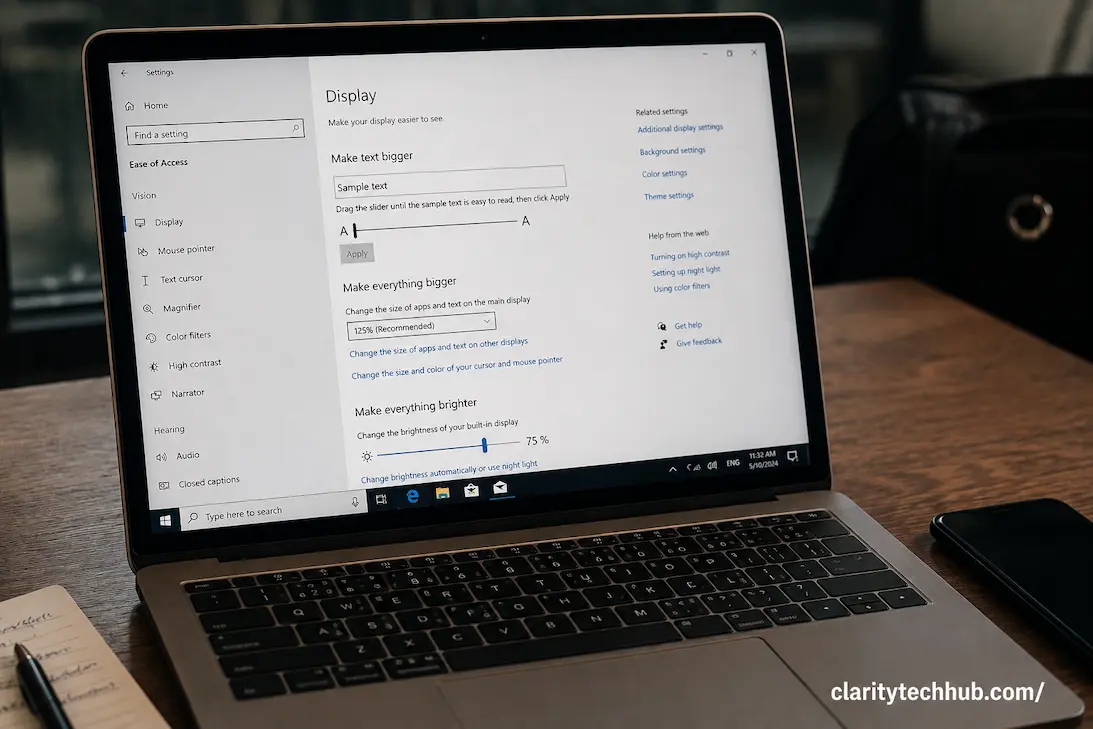
Although display accessibility settings are primarily visual, they can indirectly affect how a device responds to you. Increasing text size, changing display scaling, enlarging interface elements, or increasing contrast can make controls easier to see and select.
There is a practical limit, however. Enlarging everything does not automatically make every interface better. Some applications may have poorly designed layouts that become crowded when text or display scaling is increased. Buttons can move, lines can wrap differently, and information that previously fitted on one screen may require scrolling.
This is why accessibility should be considered at the whole-interface level. A setting can improve one part of the experience while creating a different problem somewhere else.
Accessibility Settings Can Expose Poor App Design
Sometimes changing an accessibility setting reveals a problem that was already present in the application. An interface may appear acceptable at its default size but become difficult to navigate when text is enlarged. A button may lack a useful label for spoken navigation. A touch target may be so small that it becomes difficult to activate regardless of the user’s settings.
When that happens, repeatedly adjusting the device may not be the right solution. The application itself may need to provide better accessibility support.
This distinction is particularly important when one app behaves differently from everything else on the device. If accessibility features work correctly across the operating system and most applications but one application becomes unusable, investigate that application’s settings, updates, support documentation, or accessibility implementation before changing the entire device.
What to Do After an Accessibility Setting Makes Things Worse
It is possible to enable a setting with good intentions and then discover that ordinary interaction has become less comfortable. This is not a reason to avoid accessibility features. It simply means the adjustment was not appropriate for that particular task or user.
First, identify which setting changed. If you changed several options together, return them to their previous state and test again. Then make one adjustment at a time. This gives you a clear before-and-after comparison.
It can also help to test common tasks rather than simply looking at the settings screen. Open a frequently used application, type a short message, scroll through a webpage, select small buttons, and perform any gestures you use regularly. Accessibility settings should be evaluated against real use, not just whether the setting appears logically correct.
Keep Track of Changes When Troubleshooting
Accessibility settings are often spread across several areas of a device, and some can interact with ordinary display, keyboard, pointer, sound, or touch controls. If you are helping another person configure a device, write down the settings that were changed and their previous values where possible.
This is particularly valuable after a system update or device reset. Instead of trying to remember why a particular option was enabled, you have a simple record of the configuration that previously worked.
A useful troubleshooting note might contain only three things: what was difficult, what setting was changed, and what happened afterward. That small amount of information can prevent repeated experimentation and makes it easier to undo an unsuccessful change.
When Accessibility Settings Aren’t Enough
Settings can compensate for many interaction difficulties, but they cannot fix every underlying problem. A damaged touchscreen, failing mouse, worn keyboard, faulty display, inconsistent touch digitizer, or other hardware issue can produce symptoms that look like an accessibility problem.
Likewise, an application may contain a bug that prevents a control from responding correctly. If a particular physical input repeatedly fails even after testing the device’s settings, compare it with another input method where possible. For example, if a touchscreen is unreliable, test whether the same operation works using a connected keyboard or pointer.
The pattern matters. If the problem follows the physical input device, investigate the hardware. If it follows the application, investigate the software. If it changes when a particular accessibility setting is enabled or disabled, the configuration itself deserves attention.
A Practical Way to Find the Right Setting
You do not need to explore every accessibility option before making a useful improvement. Start with the task that is causing difficulty and identify the type of interaction involved.
- Describe the problem precisely. Is it touch, keyboard, pointer, timing, vision, hearing, or feedback?
- Check whether the hardware works normally. A setting cannot repair a damaged input device.
- Find the accessibility category related to that interaction.
- Change one setting rather than several.
- Repeat the same task that originally caused difficulty.
- Use the device normally for a while before making another change.
- Record successful settings so they can be restored later.
This approach avoids the common mistake of enabling accessibility features simply because their names sound helpful. The goal is not maximum customization. It is a device that responds predictably and comfortably.
Conclusion
Accessibility settings are most useful when they are treated as practical adjustments rather than a collection of features that should all be enabled. A device may need different settings depending on whether the difficulty involves touch accuracy, keyboard timing, pointer control, visual feedback, audio cues, or the amount of time available to complete an interaction.
Start with the actual task that feels difficult and work backward to the setting that controls that behavior. Make one change, test it under normal conditions, and keep a record of what worked. If the problem continues regardless of configuration, consider whether the application or physical hardware is responsible instead.
The result should not simply be a device with more accessibility options turned on. It should be a device that responds in a way that makes sense to the person using it. That is the real purpose of accessibility customization: removing unnecessary barriers without introducing a new set of problems.

ClarityTechHub Editorial Team publishes practical technology guides covering device compatibility, accessibility, home technology, maintenance, and technology setup. Our articles focus on explaining everyday technology problems clearly, comparing practical solutions, and helping readers make informed decisions about the devices and systems they use.