
Published: July 24, 2026 | Last Updated: June 2, 2026
Touchscreens are designed to make interaction feel simple: tap an icon, swipe through a page, press a button, and move on. But that simplicity can disappear when the screen becomes difficult to use accurately. A tap may land beside the intended button, a swipe may be interpreted as a tap, or a touch-and-hold action may trigger before you meant it to. These problems can be especially frustrating because the display may look completely normal and the touchscreen may appear to be working.
Difficulty with touch accuracy does not necessarily mean the screen is damaged. The problem can come from small interactive controls, crowded layouts, sensitivity settings, accidental touches, protective accessories, gesture requirements, or the way an application interprets touch input. Modern phones and tablets also include accessibility features specifically intended to change how taps, swipes, holds, and repeated touches are recognized. For example, Apple’s Touch Accommodations can adjust hold duration, swipe behavior, repeated touches, and tap assistance. (Apple Support)
The most useful approach is to first determine what kind of accuracy problem you are having. If every part of the screen seems difficult to tap, the device settings or physical screen deserve attention. If only one application causes trouble, its interface or touch handling may be responsible. And if the problem happens mainly with small buttons or tightly packed controls, changing the way you interact with the screen may be more effective than changing the device itself.
Start With the Exact Touch Problem
Before changing accessibility settings, spend a minute noticing what actually goes wrong. “The touchscreen is inaccurate” is too broad to be useful because several very different problems can produce that impression.
You might consistently tap slightly above or below where you intended. Perhaps two nearby buttons are so close together that you frequently activate the wrong one. You may have difficulty holding your finger still long enough for a long-press action, or your finger may move enough during a tap that the device interprets it as a swipe. Some people also experience unwanted touches when resting their hand against the edge of the display.
The pattern matters because each situation suggests a different solution. A consistently misplaced tap may require checking the screen itself or the application’s layout, while touch settings may better address accidental repeated touches. If the difficulty occurs only with one particular control, there may be nothing wrong with the touchscreen at all.
A useful first check
Try several different types of interaction rather than repeatedly testing the same button:
- Tap a large icon in an open area.
- Tap a small button surrounded by other controls.
- Scroll through a long page.
- Press and hold an item.
- Type a few words on the onscreen keyboard.
- Rotate the device and repeat one difficult action.
You are looking for a pattern. If large controls work reliably but small ones do not, the problem likely relates to target size or interface density. If taps are unreliable everywhere, investigate the device and its touch configuration more broadly.
Small Targets Are Harder to Hit Than They Look
A touchscreen does not give your finger the same precision as a mouse pointer. A fingertip covers a relatively large area, and your hand naturally moves slightly while you are trying to tap a particular location. This becomes much more noticeable when an interface uses small icons, compact controls, or buttons positioned very close together.
A control can also look larger than its actual interactive area. For example, a button may have a generous visual background but only part of that area may respond to touch. A tiny icon placed inside a larger visual region can create a similar problem if the clickable area has not been designed to match what the user reasonably expects.
This is why increasing text size alone does not necessarily solve touch difficulties. Larger text may improve readability while leaving the interactive controls exactly where they were. For someone who has trouble selecting small targets, the size and spacing of the controls themselves may matter more than the size of the labels.
When spacing matters more than size
Making every button enormous is not always practical. Increasing the space between controls can sometimes produce a bigger improvement because it reduces the chance of activating a neighboring control.
This is particularly important for destructive or consequential actions. Buttons such as Delete, Send, Confirm, Cancel, or Purchase should not be positioned so closely together that a small movement can trigger the wrong action.
For website designers and app developers, this is an interface-design issue rather than simply an accessibility setting. For users, however, recognizing that the problem is caused by crowded controls can help explain why one application feels much harder to operate than another.
Check Whether a Screen Protector Is Affecting Touch
A screen protector is another physical factor worth considering, especially if the touch problem appeared after one was installed or replaced. Most modern devices are designed to work through common screen protectors, but accessories can still affect the experience depending on their construction, installation, thickness, cleanliness, or compatibility with the device.
Start by cleaning the display with a method appropriate for your device and checking for bubbles, lifted edges, cracks, or areas where the protector is not sitting properly. A damaged protector can make particular regions feel different from the rest of the screen.
Don’t immediately assume that the protector is responsible, though. If the same area remains inaccurate after the protector is removed or replaced, the underlying touchscreen may need further investigation. Likewise, if only one application has difficulty recognizing touches, replacing a perfectly functional protector is unlikely to solve the real problem.
Accidental Touches Can Be a Different Problem
Not every touch problem is caused by failing to register the intended tap. Sometimes the device registers too much interaction.
A finger may rest against the screen while another finger is trying to operate a control. The palm may touch the edge of a large tablet. A slight movement during a tap can become a swipe, while repeated contact can trigger an action more than once.
These situations are especially noticeable when using the device one-handed or while holding it at an awkward angle. They can also become more obvious in applications that depend heavily on gestures.
If accidental input is the main issue, look for touch-related accessibility controls rather than simply increasing touch sensitivity. The goal is to make the device distinguish intentional input from incidental movement more effectively.
Touch Accommodations Can Change How an iPhone Responds
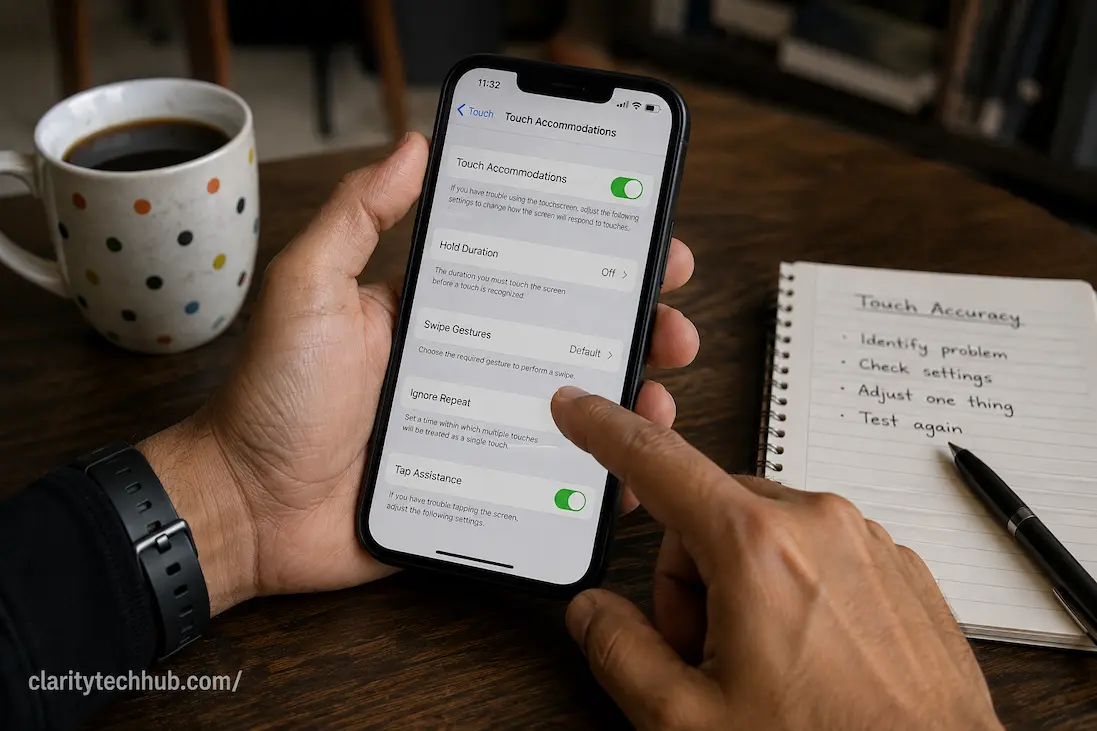
On supported Apple devices, Touch Accommodations provides several controls for people who have difficulty performing precise taps, swipes, or touch-and-hold gestures. Apple says the feature can change how the device responds to taps and other touch input, including the duration required for a touch to be recognized and how repeated touches are handled. (Apple Support)
You can find these controls under Settings > Accessibility > Touch > Touch Accommodations on iPhone and iPad. Available options include Hold Duration, Swipe Gestures, Ignore Repeat, and Tap Assistance. The exact behavior of each option matters, so it is better to change one setting and test it than to enable everything at once. (Apple Support)
Hold Duration
Hold Duration can be useful when accidental touches are being registered too quickly. It changes how long you need to touch the screen before the device recognizes the contact as intentional. Apple notes that when Hold Duration is increased beyond 0.3 seconds, a visual timer appears while the device waits for the configured duration. (Apple Support)
This can help someone whose finger frequently touches the screen unintentionally, but it can also make ordinary interaction feel slower. If you increase the delay too much, quick taps may become frustrating because the device no longer responds immediately.
The best setting is therefore not necessarily the longest available duration. Use the shortest delay that reduces unwanted touches without making normal interaction uncomfortable.
When Swipes Keep Turning Into Taps
Swiping requires movement, but a touchscreen has to decide whether a finger movement represents a tap, swipe, drag, or another gesture. If your finger moves only slightly while attempting to tap, the device may interpret that movement differently from what you intended.
The reverse can also happen. You may try to scroll but accidentally activate an item underneath your finger. This is particularly frustrating in lists where every row is interactive.
Apple’s Touch Accommodations includes Swipe Gestures, which can be used alongside certain touch settings to make swiping easier when a hold or tap-assistance configuration is active. The feature allows users to configure how much movement is required before a swipe gesture begins. (Apple Support)
Rather than changing the setting repeatedly, test it on an ordinary webpage or list. Scroll several times, then tap individual items. You want to find a balance where scrolling remains predictable without making ordinary taps difficult.
Repeated Taps Can Create Their Own Problems
Another situation occurs when a single intended tap becomes multiple inputs. This can happen when a finger briefly contacts the screen more than once, particularly when precise finger control is difficult.
On iPhone and iPad, Ignore Repeat within Touch Accommodations can be configured so that multiple touches within a selected period are treated as a single touch. Apple provides this specifically as one of the ways to adjust how the device responds to touch. (Apple Support)
This can be useful in situations where repeated accidental taps cause unwanted actions. However, there is a trade-off: setting the interval too aggressively may cause legitimate rapid interactions to be ignored.
As with the other touch controls, make a small change first and test it using the applications you actually use. Accessibility settings are most useful when they are adapted to the person’s interaction style rather than treated as universal fixes.
When Touch-and-Hold Actions Are Difficult
A long press is not the same as an ordinary tap. It requires the user to keep a finger relatively stable for a certain period, and some interfaces rely heavily on this gesture for additional menus or actions.
If the finger moves too soon, the intended long press may never be recognized. If the required duration is too short, an accidental hold can trigger something unexpectedly.
Apple provides separate controls for touch-and-hold behavior. On supported iPhones, Haptic Touch settings allow users to choose a Fast or Slow response for touch-and-hold actions. (Apple Support)
This is worth testing if ordinary taps work well but long presses consistently fail. The right setting depends on whether the difficulty is holding long enough or avoiding accidental activation.
Try a Different Way to Control the Screen
Touch does not have to be the only way to interact with a modern device. When precise finger input remains difficult, an alternative pointing device can sometimes make everyday tasks substantially easier.
Apple’s AssistiveTouch supports external pointing devices such as mice and trackpads, and Apple also provides options for adjusting pointer behavior and tracking sensitivity. (Apple Support)
This can be particularly useful on an iPad when working with detailed interfaces, documents, spreadsheets, or websites containing small controls. Instead of trying to make every touchscreen gesture perfect, you can use a pointer for tasks that require greater positional precision.
AssistiveTouch also provides an onscreen menu and alternative ways to perform certain actions, which can reduce dependence on gestures or physical buttons. (Apple Support)
Android Phones May Offer Similar Accessibility Controls
Android devices vary considerably because manufacturers can change the names and locations of settings. For that reason, it is better to look for touch and accessibility options on the particular device instead of assuming that every Android phone uses identical menus.
If the problem is specific to one application, check that application’s own settings before changing system-wide touch behavior. Some games, drawing applications, launchers, keyboards, and specialized interfaces deliberately use gesture behavior that differs from ordinary apps.
It is also worth checking whether the difficulty follows the application or follows the device. If the same touch action works correctly in several other applications, the touchscreen itself becomes a less convincing explanation.
A Simple Comparison Can Narrow It Down
One of the most useful tests is to compare the difficult interaction with a similar interaction elsewhere. This prevents you from treating every touch problem as a hardware fault.
| What happens | What it suggests |
|---|---|
| Large buttons work, tiny ones do not | Target size or interface spacing |
| One app has the problem | App-specific layout or gesture handling |
| The entire screen feels inaccurate | Device, screen, protector, or touch settings |
| Taps become accidental holds | Touch-and-hold timing or finger movement |
| Swipes are frequently misread | Gesture recognition or touch technique |
| Multiple taps register unexpectedly | Repeated-touch sensitivity |
| Problem began after a screen protector | Physical accessory is worth checking |
| External pointer works better | Fine touch precision may be the limiting factor |
These observations do not prove a diagnosis by themselves. They simply help you avoid changing settings that have nothing to do with the actual problem.
When the Problem May Be Hardware
There are situations where accessibility adjustments will not solve the problem. If one region of the display consistently fails to recognize touches, responds unpredictably, or behaves differently from the surrounding screen, hardware becomes a more serious possibility.
Pay attention to whether the problem is tied to a physical location. For example, if the upper-right portion of the screen consistently fails while the rest works normally, that is different from having trouble tapping small icons throughout the interface.
A damaged display, previous impact, moisture exposure, or a failing touch-sensing layer can potentially cause localized problems. If the device has recently suffered physical damage, don’t keep changing accessibility settings indefinitely while ignoring that evidence.
A useful hardware-versus-interface test
Open a simple application that does not contain a complicated interface and test several points across the display. Then repeat the same basic test in another application.
If the same physical area repeatedly fails regardless of the application, the problem deserves hardware investigation. If the difficult area changes depending on the application or only affects certain controls, the interface is a more likely explanation.
This distinction can save considerable time because replacing a screen protector or changing touch settings cannot repair a damaged touch-sensing component.
Avoid Turning Accessibility Settings Into a Guessing Game
It is tempting to enable several options at once when a touchscreen becomes frustrating. That can make the problem harder to understand because you no longer know which setting changed the behavior.
A better approach is to establish a baseline first. Test the same action a few times, change one relevant setting, and repeat the test. If the result improves, keep the change temporarily and use the device normally before deciding whether it is genuinely helpful.
This is particularly important with settings that alter gesture timing. A change that helps with accidental touches could make swiping or quick interaction less convenient. Accessibility is not about making the device universally slower or more sensitive; it is about making the interaction better suited to the person using it.
When an App’s Design Is the Real Problem
Sometimes the touchscreen is functioning exactly as intended, but the application has been designed around controls that are difficult to hit accurately. A row of tiny icons, tightly packed toolbar buttons, or a menu that requires precise gestures can create problems even on a perfectly responsive screen.
This matters for websites too. A mobile webpage can technically fit everything onto a small display while still being unpleasant to operate. If links are packed together or controls are difficult to distinguish, users with limited touch precision may struggle even though the page looks fine to someone using a mouse.
If you are a website or application owner, testing with real touch interaction is therefore important. A design that looks neat in a desktop browser may need different spacing, control sizes, or interaction patterns on a touchscreen.
A Practical Troubleshooting Order
If touchscreen accuracy has suddenly become difficult, there is no need to change everything immediately. Work through the least disruptive checks first:
- Identify whether the problem affects all apps or only one.
- Test large controls and small controls separately.
- Clean the display and inspect the screen protector.
- Check whether the same physical area behaves differently.
- Restart the device and test again.
- Review touch and accessibility settings.
- Change one touch setting at a time.
- Try an external pointer if precise touch remains difficult.
- Check for recent physical damage or changes.
- Seek device-specific support if a particular area consistently fails.
The purpose of this sequence is not to force every touchscreen problem into a software solution. It is to separate simple interaction difficulties from problems that deserve deeper investigation.
Make the Interaction Fit the Person, Not the Other Way Around
A touchscreen does not become inaccessible only when it stops working. It can also become difficult to use when the controls are too small, gestures require more precision than the user can comfortably provide, or the device interprets ordinary finger movement differently from what the user intended.
That is why the first step should be identifying the exact interaction that is failing. Large controls, small controls, scrolling, long presses, repeated taps, and gestures place different demands on the user and the device. Once the pattern is clear, you can decide whether the appropriate response is an accessibility setting, a different interaction method, an application-specific adjustment, or a hardware check.
Modern devices provide more flexibility than a simple “touch sensitivity” setting suggests. On supported Apple devices, touch accommodations can alter timing and gesture behavior, while AssistiveTouch can provide alternative controls and pointer-device support. (Apple Support) The goal is not to make every touch respond more quickly or more slowly. It is to make the device respond more predictably to the way you actually use it.
Frequently Asked Questions
Why do I keep tapping the wrong button on my phone?
The problem may be caused by small controls, crowded interface elements, finger movement, or difficulty maintaining precise contact with the screen. If large buttons are easy to use but nearby small controls are not, the application’s layout may be the main issue rather than the touchscreen itself.
Can a screen protector make touch accuracy worse?
It can affect the experience in some situations, particularly if it is damaged, poorly fitted, unusually thick, or not sitting correctly on the display. If touch problems began immediately after installing a protector, that timing is useful evidence. Check for bubbles, lifted edges, cracks, and other installation problems before assuming the phone itself is failing.
Why does my phone sometimes register a swipe when I am trying to tap?
Your finger may move enough during the interaction for the device or application to interpret it as a gesture. This can be more noticeable with small controls or when using the phone one-handed. Touch settings that alter gesture recognition may help, depending on the device.
What are Touch Accommodations on an iPhone?
Touch Accommodations are accessibility controls that let users adjust how an iPhone or iPad responds to taps, swipes, repeated touches, and certain other touch interactions. Apple includes options such as Hold Duration, Swipe Gestures, Ignore Repeat, and Tap Assistance. (Apple Support)
Can I use a mouse if touchscreen controls are too difficult?
On supported Apple devices, AssistiveTouch can work with compatible pointing devices such as a mouse or trackpad. Apple also provides controls for pointer behavior and tracking sensitivity. (Apple Support) Other phones and tablets may provide similar options depending on the operating system and manufacturer.

ClarityTechHub Editorial Team publishes practical technology guides covering device compatibility, accessibility, home technology, maintenance, and technology setup. Our articles focus on explaining everyday technology problems clearly, comparing practical solutions, and helping readers make informed decisions about the devices and systems they use.