
Published: July 31, 2026 | Last Updated: June 2, 2026
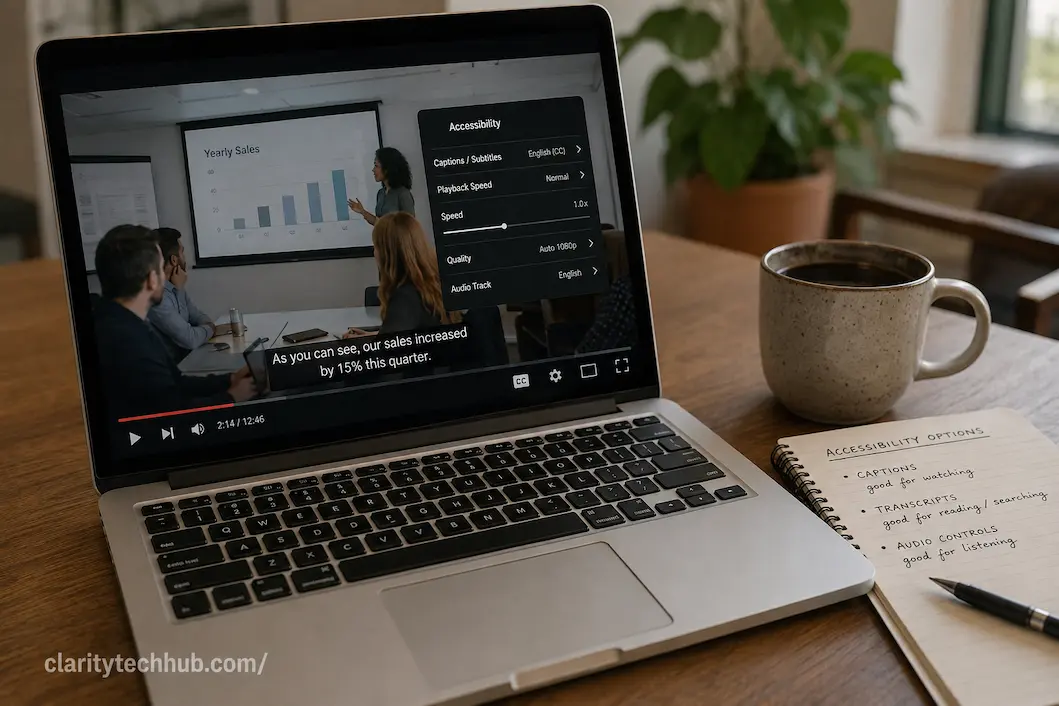
Captions, transcripts, and audio controls can all make digital content easier to follow, but they solve different problems. A person watching a video in a noisy environment may need captions, while someone who cannot listen to audio at all may depend on the same captions throughout the entire recording. A transcript can be more useful when the goal is to search, review, copy information, or return to a particular section later. Audio controls, meanwhile, can make spoken content easier to hear without changing the visual presentation.
These options are sometimes treated as interchangeable accessibility features, but they are not. Captions provide synchronized text alongside audiovisual content, transcripts provide a text version of spoken or other relevant information, and audio controls change how the sound itself is experienced. Choosing the right option therefore depends on what is making the content difficult to access in the first place.
The distinction matters for both users and people creating websites, courses, videos, presentations, and other digital material. Adding a transcript does not automatically solve a problem caused by unclear audio, just as increasing the volume does not help someone who cannot hear the soundtrack. A more useful approach is to understand what each option provides and choose the combination that matches the situation.
Captions Are Most Useful When Timing Matters
Captions are synchronized text displayed while a video or other audiovisual content is playing. They allow the viewer to follow spoken dialogue without depending entirely on the audio track.
This makes captions particularly useful for recorded lectures, tutorials, interviews, demonstrations, meetings, social videos, and other content where the relationship between what is being said and what is happening on screen matters. A viewer can read the words while watching the relevant visual information instead of having to switch between a separate document and the video.
Captions can also be useful when sound is unavailable or inappropriate. Someone might be watching a video in a library, on public transport, in a shared office, or late at night. In those situations, captions can provide access to the spoken information without requiring the viewer to play the audio aloud.
Captions and subtitles are not always the same thing
The terms captions and subtitles are often used interchangeably, but accessibility guidance commonly distinguishes them by purpose. Captions generally include spoken dialogue plus relevant non-speech information, while subtitles are often intended primarily to represent dialogue for people who can otherwise hear the audio.
For example, a caption may identify that a phone is ringing, that music is playing, or that someone is shouting. Those details can matter when they contribute information that would otherwise be communicated through sound.
This distinction becomes especially important when creating accessible video. Simply providing a text translation of dialogue may not provide the same information as captions that communicate meaningful audio events.
Use Captions When the Viewer Needs the Video and Text Together
Captions are particularly appropriate when the visual content itself is important. Imagine a tutorial showing someone how to configure a device while explaining each step aloud. A transcript can provide the spoken explanation, but it does not necessarily tell the viewer exactly when a particular instruction corresponds to something happening on screen.
Synchronized captions keep the information together. The viewer can see the demonstration while reading the relevant spoken content at the same time.
The same principle applies to presentations and recorded classes. If a speaker says, “Select this option in the upper-right corner” while demonstrating the action, synchronized captions can reinforce the explanation while the viewer watches the screen.
For this reason, captions should not be viewed simply as a written copy of a video. Their timing and relationship with the audiovisual content are part of what makes them useful.
A Transcript Is Better for Reading, Searching, and Reviewing
A transcript presents the spoken content as a continuous text document rather than displaying short pieces of text in synchronization with the video.
That makes transcripts particularly useful when someone wants to review information at their own pace. A reader can move backward and forward through the text, search for a particular word, copy a relevant passage, or quickly scan the material without watching the entire recording.
Transcripts are also useful when the visual component is not essential to understanding the information. A recorded interview, podcast, speech, or discussion may contain large amounts of spoken information that can be consumed effectively as text.
However, a transcript should not automatically be considered a substitute for captions. If a video contains important visual information, the transcript may need additional descriptions or other alternatives to communicate information that is not spoken aloud.
A transcript can complement captions
Providing both can be especially useful for longer content.
For example, a one-hour online lecture could offer synchronized captions during playback and a complete transcript underneath the video. The captions support the viewing experience, while the transcript gives learners another way to review the material later.
This also gives people more control over how they consume the information. Someone may watch the lecture with captions initially and later search the transcript to find the section where a particular topic was discussed.
Audio Controls Solve a Different Problem
Audio controls are not a text alternative. They modify the way the existing audio is delivered.
A basic volume control allows the listener to make speech or other sounds louder or quieter. Mute controls provide a way to stop audio when sound is unwanted. More advanced controls may include independent volume settings, playback speed, balance, or other adjustments depending on the application or media player.
These controls can be important when the content itself is understandable but the listener needs to change how it is presented.
For instance, someone may understand spoken content perfectly well but find a recording too quiet. Another person may need to slow down a lecture because the speaker talks quickly. Someone watching a video in a quiet public environment may simply need an easy way to mute it.
The key point is that audio controls improve control over sound; they do not replace information that the audio contains.
When Volume Is the Right Adjustment
If speech is clear but difficult to hear, increasing the volume may be enough. This is one of the simplest accessibility adjustments and is often overlooked when discussing more advanced alternatives.
Before assuming that captions or transcripts are necessary, check whether the audio is simply too quiet. The device, browser, media player, application, and external speakers or headphones can all affect the final listening level.
There is also a difference between overall volume and audio clarity. Increasing volume does not necessarily make poorly recorded speech easier to understand. If the recording contains background noise, distortion, inconsistent levels, or very quiet dialogue, additional audio controls or an alternative text format may be more useful.
Playback speed can also matter
Playback speed is particularly helpful for recorded material such as lectures, tutorials, interviews, and training videos. A listener who finds normal speech too fast may benefit from slowing the recording down, while someone reviewing familiar material may prefer a faster speed.
However, speed controls are not a replacement for captions or transcripts. They change the pace of the audio but do not provide an alternative way to access it.
Likewise, increasing speed can make speech less intelligible for some listeners. The useful feature is flexibility rather than a particular playback rate.
When Captions and Audio Controls Work Better Together
There is no requirement to choose only one accessibility feature. In many situations, captions and audio controls complement each other.
Consider a video in which the speaker’s voice is difficult to hear because of background noise. A viewer might increase the volume, use headphones, and enable captions. The audio adjustment can improve the listening experience while captions provide a reliable text representation of the dialogue.
Similarly, someone learning in a noisy environment may keep the volume low or muted while following the captions. Another person may prefer normal audio with captions enabled because reading the dialogue reinforces comprehension.
The most accessible design does not force everyone into the same method. It provides reasonable options and lets users choose the combination that works for them.
Some Content Needs More Than a Transcript
A transcript can accurately reproduce spoken words and still leave important information inaccessible.
Imagine a video demonstration where a presenter says, “As you can see here,” and then points to a chart. A transcript containing only the spoken sentence does not tell a reader what is visible in the chart.
The same issue can occur in instructional videos, product demonstrations, presentations, and recorded meetings. Visual information may need its own description if it carries meaning that is not communicated through speech.
This is why accessibility should be considered in terms of the information being communicated, not simply the presence of a particular accessibility feature.
Ask what information would disappear without the sound
One useful question for content creators is:
If someone could not hear this recording, what information would they lose?
The answer helps determine whether captions are enough. If the important information is spoken, accurate captions may provide it. If important information exists only in sound effects or music, captions may need to communicate those meaningful audio cues.
Then ask the opposite question:
If someone could not see the video, what information would they lose?
If the answer includes important demonstrations, charts, gestures, on-screen text, or other visual information, a transcript containing dialogue alone may not be sufficient.
This simple comparison can reveal accessibility gaps that a checklist might miss.
Captions Are Especially Valuable for Recorded Video
For prerecorded video, captions can be prepared, reviewed, and synchronized before publication. This creates an opportunity to correct transcription errors and ensure that important audio information is represented accurately.
Automatic captioning can reduce the amount of manual work involved, but automatically generated text should not simply be assumed to be correct. Names, technical terms, accents, background noise, overlapping speakers, and specialized vocabulary can all cause recognition errors.
A single incorrect word can sometimes change the meaning of an instruction. For that reason, important educational, professional, or informational content benefits from reviewing captions before publication.
The quality of the text matters just as much as the decision to provide it.
Live Content Requires Different Considerations
Live meetings, broadcasts, classes, webinars, and events create a different challenge because the text must be produced while people are speaking.
Live captions can provide access to spoken information as an event happens, but accuracy may vary depending on the captioning method, audio quality, number of speakers, accents, background noise, and technical conditions.
A transcript produced afterward can be more complete and accurate because there is time for editing. However, it cannot provide the same real-time access during the event.
This means that a recorded version with a reviewed transcript and captions may offer a different accessibility experience from the original live session. Content creators should consider both the immediate and later needs of their audience.
Don’t Hide Important Information Behind Audio Alone
A common accessibility problem occurs when instructions are delivered entirely through audio while the screen contains information that assumes the listener can see it.
For example, an instructional video might say, “Click the blue button,” while several buttons are visible on screen. Someone relying on a transcript may know that a button should be clicked but still not know which one if the color or position is not described adequately.
Accessible content should therefore make important instructions understandable without requiring the audience to infer missing information.
This does not mean every visual detail needs to be described. The goal is to communicate the information necessary to understand and complete the task.
Choosing the Right Option at a Glance
The following comparison can help when deciding which feature is most appropriate:
| Need or situation | Most useful option | Why |
|---|---|---|
| Watching video without sound | Captions | Keeps spoken information synchronized with the video |
| Difficulty hearing dialogue | Captions plus audio controls | Provides text while allowing sound adjustments |
| Searching a long recorded interview | Transcript | Makes spoken content easier to scan and search |
| Reviewing a lecture later | Transcript and captions | Supports both playback and text-based review |
| Audio is simply too quiet | Volume controls | Adjusts the existing sound without changing the content |
| Speaker talks too quickly | Playback-speed control | Lets the listener adjust the pace |
| Meaningful sound effects matter | Captions | Can communicate relevant non-speech audio |
| Important visual information is not spoken | Descriptive information or accessible alternative | A basic transcript may leave visual information out |
| Live presentation | Live captions | Provides text access while the event is happening |
| Recorded training video | Captions and transcript | Supports both synchronized viewing and independent review |
The best choice is often a combination rather than a single feature. The more varied the content, the more useful it becomes to provide several ways of accessing the same information.
What Content Creators Should Check Before Publishing
If you publish videos, podcasts, courses, tutorials, webinars, or other multimedia content, accessibility should be considered before the material goes live rather than added only after someone reports a problem.
Start by reviewing whether the spoken content has accurate captions. Then check whether meaningful non-speech sounds are represented where necessary. Make sure the media player provides usable controls for volume, playback, and captions when those features are available.
For longer recordings, consider providing a transcript as well. It can make the content easier to search, review, reference, and access independently of the video player.
Finally, look at the content itself. If the speaker refers to charts, demonstrations, on-screen text, or visual changes without explaining them, adding captions alone may still leave part of the information inaccessible.
A Simple Way to Decide What You Need
When you’re unsure whether to provide captions, a transcript, audio controls, or several of them, start with the user’s task rather than the feature name.
If the user needs synchronized text while watching: captions are the natural choice.
If the user needs to read, search, review, or reference spoken material independently: a transcript is usually more useful.
If the information is understandable but the sound needs adjustment: audio controls are appropriate.
If the content contains important information in both sound and visuals: a combination of accessible alternatives may be necessary.
This approach avoids the common mistake of treating accessibility as a checklist where adding one feature automatically makes the content accessible. Different barriers require different solutions.
Common Mistakes to Avoid
One of the biggest mistakes is assuming that automatically generated captions are accurate enough for every situation. They can be a useful starting point, but errors should be reviewed when the accuracy of the information matters.
Another problem is providing a transcript that contains only dialogue when important visual or audio information is missing. A transcript is valuable, but its usefulness depends on whether it communicates the information people actually need.
It is also unhelpful to hide accessibility controls or make them difficult to find. Captions should be easy to enable, audio controls should be understandable, and transcripts should be clearly associated with the relevant content.
Finally, don’t assume that accessibility means forcing every person to use the same format. Some users prefer captions, some prefer audio, some use transcripts for reference, and others combine several options depending on the situation.
Frequently Asked Questions
Are captions and transcripts the same thing?
No. Captions are synchronized with the audiovisual content and appear as the relevant words or sounds occur. A transcript is generally a continuous text version of spoken content that can be read independently of playback. They can serve different purposes and are often most useful when provided together.
Do captions help if I can hear the audio but have trouble understanding speech?
They can. Captions allow you to read the dialogue while listening, which can make speech easier to follow in recordings with accents, background noise, unfamiliar terminology, or rapid conversation. They can also help when the audio quality is inconsistent.
Is a transcript enough to make a video accessible?
Not necessarily. A transcript can provide access to spoken information, but it may not communicate important visual information or meaningful sounds that are not included in the dialogue. The appropriate alternative depends on what information the video communicates.
Why should captions include sounds that aren’t spoken?
Some sounds provide information that would otherwise be unavailable to someone who cannot hear the audio. For example, a significant alarm, doorbell, or change in music may affect what is happening in a scene. Captions can communicate meaningful non-speech audio when it contributes to understanding.
Should I provide both captions and a transcript for a long video?
Often, yes. Captions are useful while watching the video because they remain synchronized with the presentation. A transcript is useful for searching, scanning, reviewing, and referencing the material separately. For long educational or informational recordings, the two formats can complement each other.

ClarityTechHub Editorial Team publishes practical technology guides covering device compatibility, accessibility, home technology, maintenance, and technology setup. Our articles focus on explaining everyday technology problems clearly, comparing practical solutions, and helping readers make informed decisions about the devices and systems they use.