
Published: August 22, 2026 | Last Updated: June 2, 2026
Accessibility settings are useful only when they make everyday technology easier to use consistently. A person may adjust text size, display contrast, pointer behavior, captions, keyboard settings, or touch controls on one device and then discover that another device behaves completely differently. The same problem can appear between applications on the same computer or phone. One app may respect the system’s larger text setting while another uses its controls, while a browser may handle display preferences differently from a desktop application. This can turn a helpful accessibility adjustment into a source of repeated frustration.
The problem is not necessarily that an accessibility feature is missing. In many cases, the difficulty arises because different levels control the settings. Some preferences belong to the operating system, others belong to individual applications, and some are attached to an account or synchronized profile. Understanding those layers makes it much easier to create a setup that behaves predictably instead of repeatedly adjusting the same options whenever you move between devices or apps.
Why the Same Setting Does Not Always Behave the Same Way
Modern operating systems provide a wide range of accessibility controls, but applications decide how they respond to many of those controls. A larger system text setting may affect menus and interface elements while having little effect on content displayed inside a particular application. Similarly, one program may respect a system-level contrast or color preference, while another may only partially support it. This does not automatically mean that either the device or application is malfunctioning.
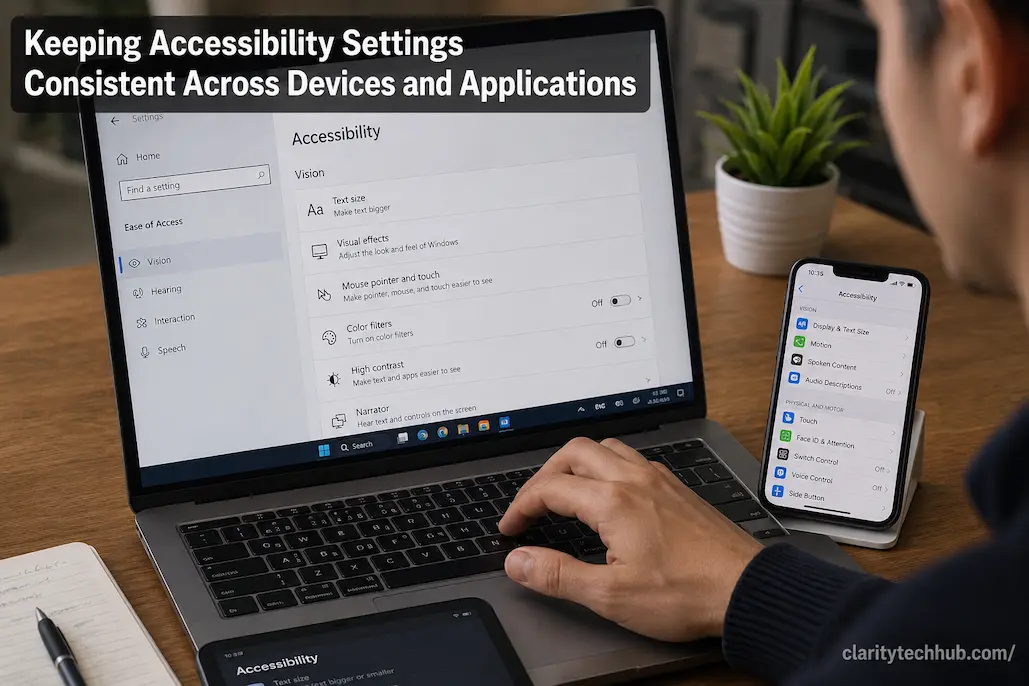
The situation becomes more noticeable when you use several types of devices. A phone may have its own display and text settings, a tablet may use a different configuration, and a computer may provide additional controls for keyboards, pointers and window behavior. Even when the same account is signed in on all three, accessibility preferences are not necessarily identical across platforms.
Three layers worth checking
It helps to think about accessibility settings in three broad layers:
| Layer | Examples | What to watch for |
|---|---|---|
| Device or operating system | Text size, display scaling, contrast, captions, pointer settings | Usually affects many applications |
| Application | Text controls, playback captions, interface themes, keyboard shortcuts | May override or ignore system preferences |
| Account or profile | Saved preferences, synchronized settings, application profiles | May or may not follow you to another device |
These layers can overlap, but they should not be treated as interchangeable. If something changes unexpectedly, first determine where that preference is being controlled. That small step can prevent unnecessary changes to settings that were working correctly elsewhere.
Start With the Settings You Rely on Most
Trying to make every accessibility option identical across every device can become unnecessarily complicated. A better starting point is to identify the settings that have the greatest effect on how you use technology every day. These might include larger text, display scaling, captions, keyboard behavior, pointer size, touch sensitivity, reduced motion or color-related settings.
Once you know which settings matter most, check whether each one exists at the operating-system level, inside the applications you use frequently, or both. This creates a practical baseline without requiring you to reproduce every preference manually. It also makes troubleshooting easier because you know which settings are intentional and which may have changed unexpectedly.
For example, if larger text is essential for comfortable reading, don’t simply increase the size until one application looks good. Check how that change affects several applications you use regularly. A setting that is comfortable in a messaging app might make a productivity application difficult to navigate if that application has poor support for scaling.
System Settings Usually Make the Best Starting Point
When an accessibility preference is available through the operating system, it is generally sensible to configure that first. System-level settings are designed to provide a consistent foundation across supported parts of the interface. Depending on the platform, this can include display scaling, text size, magnification, captions, keyboard assistance, pointer adjustments and other features.
This does not guarantee that every application will follow the preference perfectly. Applications can use their own interface frameworks, custom controls or independent accessibility options. Some may also have limits on how much their interface can scale before elements begin to overlap or become difficult to reach.
The important point is to avoid solving an application-specific problem by making a system-wide change that creates problems elsewhere. If one application is difficult to use with your preferred text size, investigate whether that application provides its own text or display control before reducing the accessibility setting for the entire device.
Look for application-specific controls
Many applications provide their own settings for features such as:
- Text or font size
- Caption appearance
- Playback controls
- Interface themes
- Keyboard shortcuts
- Zoom levels
- Notification behavior
- Reading or display preferences
These controls can be valuable when the application does not respond adequately to the operating system’s accessibility settings. They can also explain why two applications appear different even though the device itself has not changed.
Rather than assuming something is wrong, check whether the application deliberately provides an independent preference. This is particularly important for browsers, media players, document editors, communication applications and other software that displays a large amount of user-generated content.
Synchronization Does Not Always Mean Accessibility Settings Follow You
People often expect settings to move automatically when they sign into the same account on another device. Sometimes they do, but synchronization depends on the operating system, application and type of preference involved. An account may synchronize certain application data without copying every accessibility preference, especially when moving between different platforms.
For example, signing into the same service on a phone and computer may synchronize bookmarks, messages or documents while leaving display scaling and keyboard behavior under the control of each operating system. This is often intentional because the appropriate setting for one device may be completely unsuitable for another.
A large monitor and a small phone screen have very different physical characteristics. The same text size, pointer size or zoom level may not provide an equally comfortable experience on both. Consistency therefore does not always mean identical numerical settings. It means achieving a similar level of usability for the person using each device.
Keep a Simple Accessibility Baseline
If you use several devices regularly, it can help to maintain a short personal list of the settings that matter. You do not need to document every option in the accessibility menu. Record only the preferences that you would want to restore if a device were reset, replaced or significantly updated.
A simple record might include your preferred text size, display scaling, caption preference, pointer size, keyboard behavior and any application-specific adjustments that are particularly important. If you use a new device, this list gives you a practical starting point rather than forcing you to remember every adjustment from memory.
This can also be useful after a major operating-system update. Accessibility menus sometimes change organization or introduce additional controls. If a setting appears to have moved or been reset, your baseline gives you a reference for rebuilding the setup without changing unrelated options.
Be Careful With Settings That Look Similar
Accessibility menus often contain settings with similar-sounding purposes, but they can affect different parts of the experience. Text size, display scaling and magnification, for example, are not necessarily interchangeable. Increasing text may enlarge certain content while leaving interface elements unchanged, whereas display scaling can affect a much broader portion of the interface.
The same distinction applies to contrast and color-related options. A high-contrast mode, an increased-contrast option and a dark appearance setting may produce noticeably different results. Choosing one simply because its name sounds appropriate can create an interface that is harder to follow.
When a setting has an unexpected effect, return to the description of the specific control rather than changing several related options. Make one adjustment, test the applications you normally use, and decide whether the result actually improves navigation and readability.
Accessibility Can Become Inconsistent After Updates
Operating-system and application updates can change how accessibility features are implemented. An update may improve support for a particular setting, introduce a new accessibility option, move a control, or alter how an application responds to system preferences. Occasionally, an update can also introduce a compatibility problem that was not present previously.
If your setup suddenly feels different after an update, avoid assuming that you accidentally changed something. Check the relevant accessibility settings first and compare them with your normal baseline. Then test the applications where you notice the difference.
The timing itself is useful information. If several applications changed at once after an operating-system update, investigate system-level settings first. If only one application changed after that application’s update, its own settings or compatibility may deserve closer attention.
Browsers Deserve Special Attention
Websites add another layer because the browser sits between the operating system and the website itself. A browser can have its own zoom level, font preferences, accessibility features, extensions and privacy controls. Websites can also implement text and interface scaling differently.
This means a person might have a comfortable accessibility configuration on the operating system but still encounter a website with tiny controls or difficult-to-read content. Changing the entire device’s display settings may not be the best response if the problem exists only on one website.
Instead, compare the browser’s settings with the operating system’s accessibility preferences. If the problem is limited to one site, investigate site-specific zoom or display controls where available. This preserves the broader accessibility setup while addressing the actual source of the difficulty.
When One Application Refuses to Follow Your Settings
There will be situations where an application simply does not respond well to your preferred accessibility configuration. This can happen because the application uses custom interface elements, has limited scaling support, or provides its own controls instead of relying entirely on operating-system settings.
Don’t immediately assume that you need to change your overall device configuration. First check the application’s accessibility, display, appearance or preferences sections. Look for settings that control text size, interface density, captions, keyboard navigation, zoom or other features related to the problem.
If the application still behaves poorly, document exactly what happens. Note the device, operating-system version, application version, accessibility setting being used and the specific interface element that becomes difficult to use. That information is much more useful when reporting an accessibility problem than simply saying that “the app doesn’t support accessibility.”
Avoid Chasing Perfect Uniformity
It is tempting to make every device and application look exactly the same. In practice, that may not be realistic or even desirable. A setting that works well on a large computer monitor may be excessive on a phone, while a touch interface may require larger controls than a mouse-driven desktop application.
The better goal is predictable usability rather than identical appearance. Your devices can have different numerical settings while still providing comparable readability, navigation and control. What matters is whether the interface remains comfortable and understandable when you move between environments.
This also means you should not reduce an accessibility setting merely because another device looks different. If larger text makes a phone easier to read, keep it there. If a computer needs a different scaling level because of its screen size, adjust it independently rather than forcing both devices to use the same value.
A Practical Way to Rebuild a Consistent Setup
When accessibility settings have become inconsistent, start with one device that currently feels comfortable. Treat it as your reference rather than trying to remember what the settings used to be.
Write down the important preferences, then configure the operating system on the other devices. After that, open the applications you use most frequently and check whether they respect the system-level choices. Where they do not, look for application-specific alternatives.
Finally, test the setup during normal activities rather than judging it from the settings screen. Read a long article, type a message, navigate menus, use a browser and perform whatever tasks you normally perform. Accessibility settings should be evaluated by how well they support real use, not simply by whether the numbers match across devices.
A useful consistency check
| Check | Question to ask |
|---|---|
| Text | Can you comfortably read ordinary content without repeatedly zooming? |
| Navigation | Are menus, buttons and controls easy to locate? |
| Input | Can you type, tap or point accurately without unnecessary effort? |
| Media | Are captions, transcripts or audio controls available when needed? |
| Display | Does the contrast or scaling improve visibility without hiding information? |
| Applications | Do your most-used apps respect the settings you depend on? |
| Switching devices | Can you move between devices without relearning the entire interface? |
This kind of test is more meaningful than comparing settings values alone. Two devices can have different configurations and still provide a similarly accessible experience.
What to Do When Settings Keep Resetting
If an accessibility setting repeatedly returns to its previous value, first determine whether the change happens after restarting the device, updating an application, switching accounts or moving between profiles. A setting that resets only after a particular event provides a much stronger clue than one that appears to change randomly.
Check whether the device has multiple user profiles, managed settings or account synchronization that could be affecting the configuration. On shared computers or managed devices, an administrator may also control certain preferences. In those situations, repeatedly changing the same setting may not provide a lasting solution.
If the setting belongs to an application, check that application’s account and synchronization behavior as well. Some applications save preferences separately from the operating system, so a change made on one device may not appear on other devices.
Don’t Change Several Accessibility Controls at Once
Accessibility troubleshooting benefits from the same principle as other forms of device troubleshooting: change one meaningful variable at a time. If text size, contrast, scaling, zoom and pointer size are all changed simultaneously, it becomes difficult to determine which adjustment helped and which one introduced a new problem.
This is particularly important because accessibility settings can interact. Increasing text size might make an interface easier to read but cause buttons to wrap differently. Increasing display scaling may improve visibility while reducing the amount of information visible on screen. A contrast setting may make some elements clearer while making others visually unfamiliar.
Give each change enough time to evaluate it in the situations where you actually use the device. If a setting improves one task but makes another significantly harder, that is valuable information. You may need a more targeted application-level adjustment rather than a stronger system-wide setting.
When Consistency Matters Most
Consistency becomes especially valuable when a person frequently moves between devices during the same task. Someone might begin reading on a phone, continue on a tablet and later work on a computer. If every environment responds differently to text, navigation or input, the mental effort required to use the technology increases.
A consistent setup can reduce that friction. The user does not have to repeatedly search for controls, increase text size, enable captions or adjust display behavior every time a device changes. Even when the underlying settings differ, keeping the overall experience familiar can make technology much easier to navigate.
This is also why accessibility should be considered during device replacement. A new phone or computer may technically support the same accessibility features as an older one, but the default configuration can be completely unique. Rebuilding the important settings early can prevent the new device from feeling unnecessarily difficult to use.
When an Accessibility Setting Makes One Device Worse
Sometimes a setting that helps on one device creates a problem on another. This is not a reason to abandon the accessibility feature. It is a reason to adjust the configuration to the characteristics of that particular device.
Screen size, resolution, viewing distance, input method and application design all affect how an accessibility setting feels. A large pointer may be helpful when using a high-resolution monitor but unnecessarily intrusive on a small touchscreen. Similarly, aggressive text scaling may be useful on a phone while making a desktop application’s layout awkward.
Think of accessibility settings as tools to adapt technology to the user, not rules that must be identical everywhere. The best configuration is the one that makes the particular device easier to understand and control.
Frequently Asked Questions
Why don’t my accessibility settings remain consistent across all my devices?
Accessibility preferences can belong to different layers of a technology setup. Some are controlled by the operating system, others by individual applications, and some may be synchronized through an account. Different platforms also support different features, so signing into the same account does not necessarily reproduce every accessibility preference.
Should I use the same text size on my phone and computer?
Not necessarily. Screen size, resolution and viewing distance can make the same numerical setting feel very different. The goal should be comparable comfort and readability rather than identical values. Adjust each device according to how it is actually used.
Why does one application ignore my larger text setting?
Some applications use their own interface controls or have limited support for system-level text scaling. Check the application’s display, accessibility or appearance settings for an independent text-size or zoom option. If no suitable option exists, the application itself may have limited support for the system preference.
Can an update change my accessibility settings?
An operating-system or application update can change how accessibility features are presented or supported, and in some cases settings may need to be reviewed again. If a previously comfortable setup changes immediately after an update, compare the affected settings with your normal configuration before making unrelated changes.
Is it better to synchronize accessibility settings automatically?
Synchronization can be convenient when supported, but it is not always appropriate to make every setting identical. Different devices have different screens and input methods. Automatic synchronization is most useful when the resulting preference remains comfortable and practical on the destination device.
Conclusion
Keeping accessibility settings consistent does not mean forcing every device to use identical values. A phone, tablet and computer have different screens, controls and applications, so some variation is completely reasonable. What matters is creating a familiar experience in which important accessibility features remain available and predictable wherever they are needed.
Start with the settings that have the greatest impact on your everyday use. Configure them at the operating-system level where appropriate, then check the applications and browsers that you rely on most. When something behaves differently, identify which layer controls the setting before changing anything else.
Most importantly, judge accessibility by what you can comfortably accomplish, not by whether every settings screen looks identical. A well-configured collection of devices should reduce unnecessary effort, make important information easier to perceive, and let you move between applications without repeatedly fighting the interface. That is the real value of keeping accessibility settings consistent.

ClarityTechHub Editorial Team publishes practical technology guides covering device compatibility, accessibility, home technology, maintenance, and technology setup. Our articles focus on explaining everyday technology problems clearly, comparing practical solutions, and helping readers make informed decisions about the devices and systems they use.