
Published: August 26, 2026 | Last Updated: June 2, 2026
Small text is not always a problem with the screen itself. Sometimes the display is simply using a text size that does not suit you, while in other cases the issue comes from a particular app, website, scaling setting, or a screen that is being viewed from farther away than usual. The useful part is that modern phones, tablets, and computers provide several ways to make text easier to read without replacing the device.
The trick is choosing the adjustment that solves the actual problem. Increasing the font size is different from enlarging the entire interface, and zooming into one webpage is different from changing the system-wide display. Some settings also do not affect every application, so a change that works perfectly in one place may appear to do nothing somewhere else.
This guide focuses on those differences. Rather than simply recommending that you “make the text bigger,” it explains which setting to try, what it changes, and what to check when larger text causes other parts of the interface to become difficult to use.
Start With the Smallest Change That Helps
If text is only slightly too small, start by increasing the text size rather than immediately enlarging everything on the screen. This preserves more of the existing layout and can make reading considerably easier without making buttons, icons and windows unnecessarily large.
There is a useful distinction here:
| Adjustment | What it changes | Best suited to |
|---|---|---|
| Text or font size | Mainly the size of written content | Small text that is otherwise easy to see |
| Display scaling | Text, apps and interface elements | An entire interface that feels too small |
| Page zoom | A particular website | Webpages with small or cramped text |
| Magnification | A temporary enlarged area | Occasional close-up reading |
| Bold or contrast settings | How clearly text stands out | Text that is large enough but difficult to distinguish |
You do not necessarily need all of these. In fact, combining several strong adjustments at once can make an interface harder to navigate.
A good starting point is to increase text size one step, use the device normally for a few minutes, and then decide whether anything else needs changing.
On an iPhone or iPad
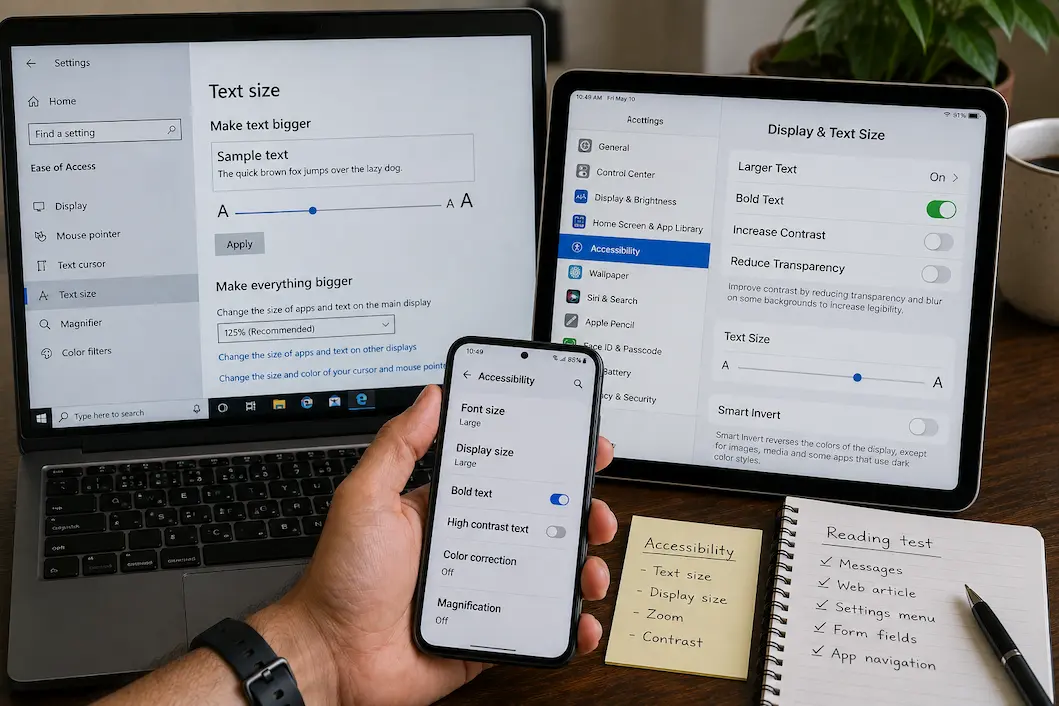
Apple provides separate controls for text size and for making the entire display appear larger. On current iPhone software, you can go to Settings > Display & Brightness > Text Size and move the slider. For larger accessibility sizes, Apple provides Settings > Accessibility > Display & Text Size > Larger Text. (Apple Support)
This distinction matters if you are trying to preserve the layout. A modest text-size increase may be enough when menus and buttons are already comfortable to use. If icons and interface elements also seem too small, Display Zoom can enlarge the overall presentation instead. Apple currently provides a “Larger Text” display-zoom option on supported iPhones. (Apple Support)
When larger text causes a new problem
Increasing text size does not guarantee that every app will rearrange itself perfectly. Apple specifically warns that making text too large can make some buttons or other functions harder to access within apps. (Apple Support)
If that happens, don’t immediately undo every accessibility setting. Try reducing the text size slightly and see whether the problem disappears. A slightly smaller font that fits comfortably may be more useful than the maximum available size that causes controls to overlap or disappear.
For people who find that size alone is not enough, Apple’s Display & Text Size accessibility settings also include options such as Bold Text, increased contrast and reduced transparency. These can improve legibility without requiring the largest possible font. (Apple Support)
Android Gives You Separate Text and Display Controls
Android’s exact menus can vary between manufacturers, but current Android accessibility guidance provides separate controls for Font size and Display size. You can search for those settings directly if the menu structure on your phone differs from the standard layout. (Google Support)
Font size changes the size of text, while Display size makes the broader interface larger. Google notes an important limitation: the font-size setting does not apply to some apps. (Google Support)
That explains a common experience: you increase the font size in Android, open an application, and discover that one screen still uses tiny text. It does not necessarily mean the setting failed. The app may not respond to the system’s font-size preference in the same way as other applications.
Android also supports bold text on supported versions and devices, which can improve visibility when letters are technically large enough but don’t stand out well against their background. (Google Support)
If websites are the main problem
You may not need to enlarge the entire phone.
Chrome on Android has its own accessibility controls for webpage zoom. You can set a default zoom level for webpages or enable a zoom option for individual sites. Google notes that a site-specific zoom level can be saved without changing the size of other websites. (Google Support)
That is particularly useful when ordinary apps are already comfortable but certain websites consistently use text that is too small.
For example, increasing Android’s overall Display size just because one website is difficult to read may make your home screen and other applications unnecessarily large. Site-specific zoom is a more targeted solution.
On a Windows Computer
Windows separates text size from overall display scaling as well. In Windows 11, you can open Settings > Accessibility > Text size to enlarge text without necessarily enlarging every other element. If the entire interface is too small, Settings > System > Display > Scale changes the size of text, apps and other screen elements together. (Microsoft Support)
This is especially useful on high-resolution monitors. A large monitor with a high pixel density can display a very sharp image while making menus and text appear physically small at the default scaling level.
If the problem is only occasional, Windows also has Magnifier. Press Windows key + Plus (+) to zoom in and Windows key + Minus (-) to zoom out. Windows key + Esc turns Magnifier off. (Microsoft Support)
That makes Magnifier different from changing your permanent display settings. You can use it when examining a small part of a document, image, dialog box or other content and then return to the normal view.
Text size versus display scaling
It is worth testing these separately.
Suppose Windows menus are readable, but the text inside several applications is too small. Increasing the system text size may be the better first test.
If the menus, icons, taskbar and application controls all look undersized, display scaling is more appropriate.
Changing scaling can affect how applications are laid out, so there is little benefit in increasing it dramatically when only text is bothering you. Microsoft provides both controls precisely because they solve somewhat different problems. (Microsoft Support)
Websites Have Their Own Reading Problems
A webpage can remain difficult to read even when your device’s system text size is comfortable. Websites control their own layouts, and some use fixed elements, small labels, tightly spaced navigation or text that does not respond as expected to system accessibility settings.
When this happens, browser zoom is often the least disruptive solution.
Instead of changing the entire computer or phone, enlarge the webpage itself. This is particularly useful for a single site that consistently uses smaller text than the websites you normally visit.
On a computer, browser zoom is also useful when reading a document-heavy page for a short period. You can enlarge the page while reading and return it to normal afterward.
What if zoom makes the page worse?
More zoom is not automatically better.
A poorly designed webpage may respond to increased zoom by causing lines to wrap awkwardly, hiding navigation controls or forcing excessive horizontal scrolling. If increasing the zoom level makes the page harder to navigate, try a smaller increase and look for the website’s own reading or accessibility options.
This is also a useful clue when evaluating the site itself: if ordinary text becomes inaccessible as soon as it is enlarged, the problem may be with the webpage’s layout rather than your device.
When Bigger Text Still Doesn’t Look Clear
Size is only one part of readability.
If letters are large enough but seem faint, crowded or difficult to distinguish from the background, increasing the font size further may not solve the problem. A stronger contrast setting, bold text or reduced transparency may be more effective.
Apple, for example, provides Bold Text, Increase Contrast, and Reduce Transparency among its display accessibility options. (Apple Support) Android similarly provides options involving contrast, color and text presentation, although availability varies by version and device. (Google Support)
The goal is not to make the screen visually intense. It is to create enough separation between the letters and their surroundings that your eyes can identify the text without excessive effort.
Reading Long Web Pages Is a Different Situation
If the problem mainly occurs when reading long articles, an accessibility or reading mode can sometimes be more useful than permanently increasing the size of everything.
Android’s Reading mode, for example, can adjust font size, contrast and color for supported long-form content and can also read content aloud. Google currently lists support for Android phones running Android 9 and later, although availability and behavior can vary. (Google Support)
Apple also provides an Accessibility Reader on supported devices. It can change text size, font, line spacing, word spacing and character spacing while presenting supported content in a more controlled reading environment. (Apple Support)
These tools are useful because they address the reading experience rather than simply enlarging every part of the operating system.
Tablets Sit Somewhere Between Phones and Computers
A tablet can be awkward because the ideal text size changes depending on how you hold and use it.
When reading while holding a tablet relatively close, a moderate text size may be comfortable. When the tablet is placed farther away on a desk or stand, the same text can suddenly feel too small.
Instead of constantly changing system settings, consider whether the problem occurs only in certain situations. If it happens primarily while reading websites, document apps or ebooks, use the application’s own text-size controls where available.
This also avoids a common trade-off: enlarging the entire tablet interface may make reading easier but leave less room for menus, toolbars and other controls.
Don’t Forget the Distance From the Screen
Sometimes the setting is not the real issue.
A laptop connected to a large monitor can be positioned farther away than a phone or tablet. If text that looked comfortable at one distance becomes difficult at another, changing the display size may not be the only solution.
Screen position, lighting and reflections can affect how comfortably you can distinguish small characters. A glossy display with strong reflections, for example, can make otherwise adequate text feel much harder to read.
Before making extreme accessibility changes, move the screen to a comfortable viewing position and reduce distracting glare where practical. Then reassess the text size.
A Simple Way to Find the Right Setting
Instead of moving every accessibility slider at once, use a short comparison.
- Increase text size slightly.
- Read the same paragraph, menu or document you normally struggle with.
- Check whether buttons and controls still fit comfortably.
- If the text is readable but the whole interface is too small, test display scaling.
- If only websites are difficult, try browser or site-specific zoom.
- If the text is large but faint, investigate contrast or bold-text settings.
- If a single app ignores the change, check that app’s own text or accessibility settings.
This approach gives you a useful answer about which adjustment actually helps. It also avoids creating a display that is so large that navigation becomes frustrating.
What to Do When One App Still Uses Tiny Text
This is one of the most common sources of confusion.
You can change the system’s text size successfully and still encounter an application that barely changes. On Android, Google explicitly notes that font-size settings do not apply to some apps. (Google Support) Similar limitations can exist when applications use their own rendering or text controls.
When that happens, check the application’s settings before assuming the device is ignoring your preference. Look for options such as Text size, Font, Zoom, Accessibility, Display, or Reading.
If the app provides no suitable control and the text remains difficult to use, a browser-based version of the service may sometimes provide better zoom behavior. That is not guaranteed, but it can be a practical alternative when the app’s interface is unusually restrictive.
When Enlarging Text Breaks the Layout
Larger text can expose weaknesses in an application’s design.
Text may become clipped, overlap another element, disappear behind a button or fail to wrap onto another line. Android’s own accessibility guidance notes that layouts with overly constrained dimensions can crop or obscure text when font sizes are increased. (Google Support)
This is important because the correct response is not always to reduce the text size again. If an application cannot accommodate larger text, the limitation may belong to the application’s interface.
Try a slightly smaller setting first, but if the same control consistently breaks at larger accessible sizes, look for another viewing method or report the problem to the application developer.
Don’t Confuse Magnification With Permanent Scaling
Magnification is valuable when you need to inspect something temporarily.
For example, you might need to read a small label in a settings dialog, examine a map, inspect part of an image, or check text that cannot be resized. A magnifier lets you enlarge that area without permanently changing the rest of the interface.
Permanent scaling is better when nearly everything feels too small.
This distinction can save you from constantly changing settings. If only occasional content causes trouble, temporary magnification is often less disruptive than making the entire device larger.
A Comfortable Reading Setup Is Usually a Combination
There is rarely one perfect text-size setting for every person or every device. Someone using a phone at close range may prefer a different setting from someone reading a desktop monitor from several feet away.
A practical setup might therefore look like this:
- Phone: slightly larger system text with occasional browser zoom.
- Tablet: comfortable system text plus larger text inside reading-heavy apps.
- Windows laptop: increased text size if only text is difficult; display scaling if the whole interface is too small.
- Large monitor: appropriate display scaling combined with comfortable viewing distance.
- Occasional tiny content: magnification rather than permanent enlargement.
The important part is not choosing the biggest available setting. It is choosing the smallest change that makes the information comfortable to read.
Frequently Asked Questions
Why does increasing the font size not change every app?
System text-size settings are not guaranteed to affect every application. Android’s documentation specifically notes that some apps do not respond to the font-size setting. (Google Support) If one app remains difficult to read, check whether it has its own text, zoom or accessibility controls.
Should I increase text size or display scaling?
Increase text size when the written content is the main problem. Use display scaling when the entire interface—including icons, buttons and apps—looks too small. Keeping these adjustments separate can prevent the screen from becoming unnecessarily large.
Why does larger text sometimes make buttons disappear?
Some applications do not adapt their layouts well when text becomes larger. Enlarged text can be clipped or overlap other interface elements when the available space is too constrained. Android’s accessibility documentation specifically identifies this type of layout problem. (Google Support)
Can I make only one website’s text larger?
Yes, when the browser supports site-specific zoom. Chrome on Android, for example, allows a zoom level to be saved for an individual site without changing the zoom of other websites. (Google Support)
What should I do if text is readable on my phone but not on my computer?
Treat the devices separately. Screen size, resolution, scaling, viewing distance and the applications you use can all differ. On Windows, for example, you can increase text size independently from display scaling, allowing you to test the smaller change first. (Microsoft Support)
Is there a way to make long articles easier to read without changing the whole phone?
Yes. Reading-focused tools can provide a more controlled presentation. Android’s Reading mode can adjust text size, contrast and color for supported content, while Apple’s Accessibility Reader provides controls including text size, font and spacing for supported content. (Google Support)

ClarityTechHub Editorial Team publishes practical technology guides covering device compatibility, accessibility, home technology, maintenance, and technology setup. Our articles focus on explaining everyday technology problems clearly, comparing practical solutions, and helping readers make informed decisions about the devices and systems they use.