
Published: August 13, 2026 | Last Updated: June 2, 2026
A computer that more than one person uses can quickly become confusing if someone does not set it up properly. Family members may save files in different places; browsers can be filled with someone else’s bookmarks; passwords may remain signed in; and one person can accidentally change settings that affect everyone. In homes, schools, small offices, and shared living spaces, these problems are common because many people start by using the same account simply because it feels easier.
This guide explains how to create a computer setup that multiple people can use comfortably. You will learn how to plan user accounts, protect privacy, organize shared files, manage software, control administrator access, maintain security, and avoid common mistakes that can turn a shared computer into a confusing mess.
Start by Understanding Who Will Use the Computer
Before creating accounts or changing settings, think about how the computer will actually be used. A computer shared by two adults in a household has different needs from a family computer used by parents and children. A small office computer may need separate accounts for several employees, while a computer placed in a shared room may mainly be used for web browsing, documents, and printing.
Start by identifying each type of user. Consider whether they need their own private files, whether they should be allowed to install software, and whether they need access to sensitive information. You should also think about how often they will use the computer. Someone who uses it every day may need a full personal account, while an occasional visitor may only need temporary or limited access.
This planning step helps prevent a common mistake: creating identical access for everyone. Not every user needs the same permissions. Giving every person complete control can create unnecessary security and maintenance problems, while restricting everyone too heavily can make the computer frustrating to use.
| User Type | Recommended Setup | Typical Access |
|---|---|---|
| Primary Owner | Administrator account | System settings and management |
| Regular User | Standard personal account | Apps, files, and normal daily use |
| Child or Limited User | Restricted account | Approved apps and appropriate content |
| Occasional Visitor | Guest or temporary account | Basic short-term access |
Once you understand the users, the rest of the setup becomes much easier to organize.
Create Separate User Accounts for Regular Users
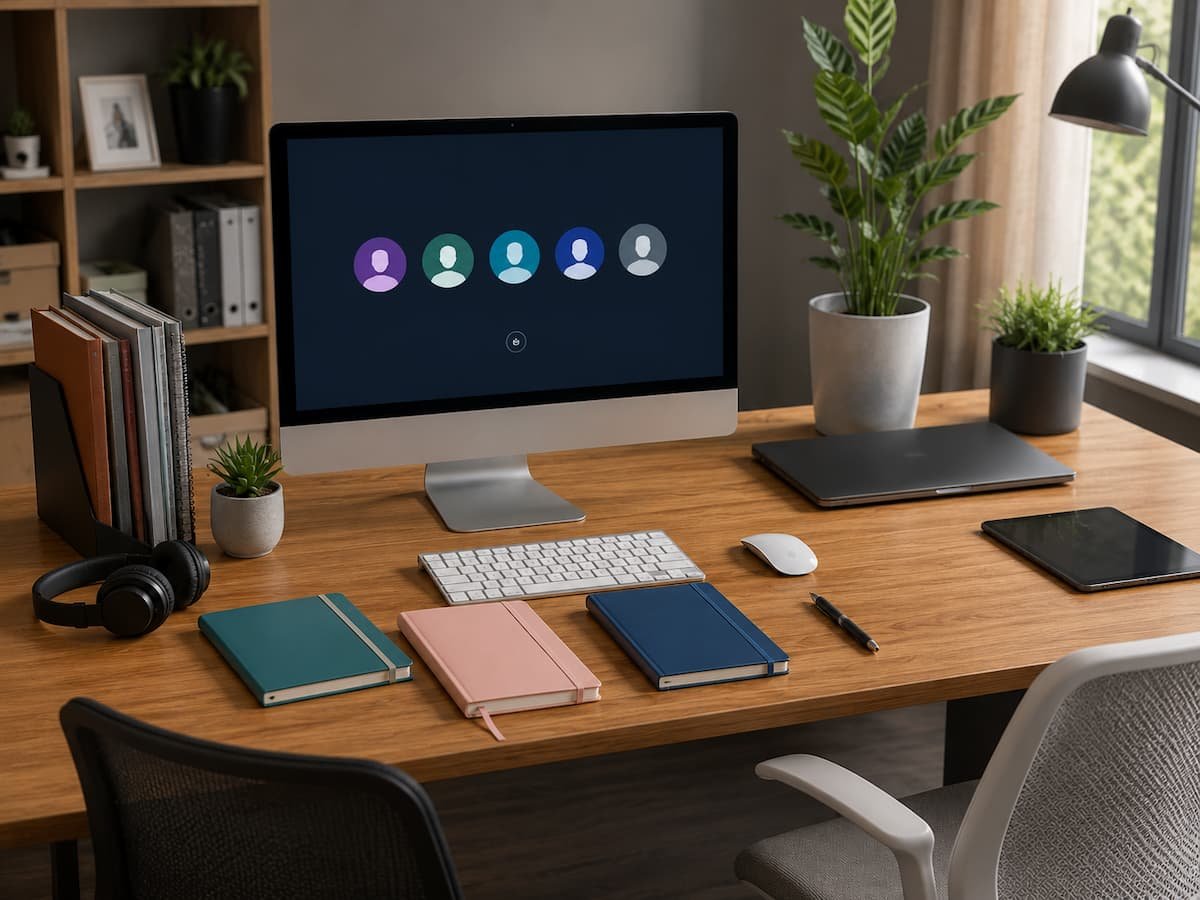
The most important part of setting up a computer for multiple people is creating separate user accounts. Each account provides its space for files, desktop settings, application preferences, and sign-in information. This means one person’s changes are less likely to affect everyone else. For example, one family member can save work documents inside their account while another keeps photos and school files in theirs. Their browser history, bookmarks, and many application settings can also remain separate. This is much safer than allowing everyone to use the same account.
Separate accounts also make everyday organization easier. When every file is stored under one shared profile, it becomes difficult to know who owns what. Important documents may be accidentally deleted or moved because another person does not recognize them. Give each regular user their own account from the beginning. Moving everyone into separate accounts later can require extra work and file organization. When creating accounts, use names that make the purpose clear. Avoid creating several mysterious profiles with names such as “User1,” “New Account,” or “PC2.” A clear account structure makes future maintenance easier.
Decide Who Should Have Administrator Access
Administrator access allows a person to make significant changes to a computer. Depending on the operating system, this can include installing software, changing system settings, managing other accounts, and modifying security options.
It may seem convenient to make every user an administrator so nobody has to ask for permission. However, such an approach can create problems. A person may accidentally install unwanted software, change an important setting, or approve something they do not fully understand. For most shared home computers, one responsible administrator account and separate standard accounts for other users provide a reasonable balance. The administrator can handle major changes, while regular users can still perform normal tasks.
Administrator vs Standard User
| Administrator Account | Standard User Account |
|---|---|
| Can install system-level software | Uses approved applications |
| Can manage other users | Usually manages only personal files |
| Can change major system settings | Has limited access to sensitive settings |
| Suitable for computer management | Suitable for everyday use |
Even the main computer owner does not always need to use an administrator account for every task. Using a standard account for daily work can reduce the chance of accidental system changes.
Protect Each User’s Privacy
Sharing a computer does not mean sharing every piece of personal information. A properly configured multi-user computer should give each regular user a reasonable level of privacy. Their personal files should stay inside their own account unless they deliberately place them in a shared location.
Privacy becomes especially important when people use email, banking services, work accounts, or private messaging platforms. Never assume that another person will remember to sign out after using a shared account. A better system is to avoid sharing personal accounts in the first place. Make sure each user protects their account with an appropriate password, PIN, or other supported sign-in method. Avoid using one shared password for everyone. If one person leaves the household or no longer needs access, their account can then be removed without changing access for every other user.
Do not save sensitive passwords in a browser profile that other people can freely access. A shared computer account can expose email, financial services, cloud storage, and other personal information. Separate accounts provide a useful boundary, but they are not a replacement for effective security habits. Users should still sign out when appropriate and avoid leaving sensitive services open on a shared computer.
Set Up Shared Files and Folders Carefully
While personal files should remain private, some information needs to be available to everyone. Family schedules, shared documents, printable forms, household records, and collaborative projects are common examples.
Create a dedicated shared location rather than placing shared files inside one person’s private account. Depending on the operating system and your setup, the location might be a shared folder, a separate storage drive, or a cloud storage folder that multiple people can access. Keep the structure simple. Too many folders can make shared information difficult to find. Start with broad categories and add more organization only when it is genuinely needed.
- Shared Documents
- Family or Household Files
- School and Learning
- Projects
- Photos for Everyone
- Printer and Scan Files
Be careful with permissions. A shared folder should not automatically mean that every person can delete important information. If the operating system or cloud service allows different levels of access, use them when appropriate.
Configure Browsers for Multiple Users
Web browsers often create some of the biggest privacy problems on shared computers. A browser may store passwords, browsing history, downloads, cookies, payment details, and active sessions. If everyone uses the same browser profile, these details can quickly become mixed together.
The simplest solution is to use separate browser profiles connected to each person’s computer account. Each user can maintain their own bookmarks and browsing preferences without affecting others.
It is also important to understand the difference between a separate browser profile and private browsing. Private or incognito modes may reduce locally stored browsing information after a session, but they do not create a complete personal workspace or replace a properly separated user account. For temporary users, a guest browsing option can be useful when available. This helps prevent visitors from adding their information to a regular user’s browser profile.
Manage Apps and Software Carefully
A shared computer can become cluttered when every user installs applications independently. Duplicate programs, trial software, browser extensions, and unused tools can consume storage and make troubleshooting more difficult.
Decide which applications should be available to everyone and which are intended for a specific user. You can share basic tools such as a web browser, office software, media players, and security software. Personal applications can remain connected to individual accounts.
Before installing software, check whether it is compatible with multiple users. Some programs store settings separately for each account, while others make changes that affect the entire computer. A simple rule can help: regular users should install software only when they understand what it does and why it is needed. If an application requires administrator permission, the administrator should review the request rather than approving everything automatically.
Organize Storage So One User Does Not Fill the Computer
Storage problems are common on shared computers because each person may assume that someone else is monitoring available space. Large video files, game downloads, old backups, and duplicate photos can gradually fill the drive.
Teach users to store files in appropriate locations and avoid saving everything directly on the desktop. If the computer has limited storage, consider explaining which files can be moved to external or cloud storage.
It can also help to review storage usage periodically. If one account is using most of the available space, there may be an easy explanation, such as a large download folder or an old collection of files that no longer needs to stay on the computer. Do not immediately delete unfamiliar files just to create space. Another user may need them. Instead, please identify the owner and review the files together before removing anything.
Keep the Shared Computer Secure
A multi-user computer has more than one person making decisions about links, downloads, websites, and software. This makes basic security habits especially important. Keep the operating system, browser, and important applications updated. Use supported security tools and encourage users to be cautious with unexpected downloads, attachments, and pop-up messages.
Account security also matters. Each person should use their own sign-in credentials rather than sharing a single password. If the computer is lost or stolen, separate accounts can also make it easier to understand which information may have been exposed.
Basic Shared Computer Security Practices
- Use separate accounts for regular users.
- Keep the operating system updated.
- Install software only from trusted sources.
- Review browser extensions regularly.
- Use individual passwords or PINs.
- Remove accounts that are no longer needed.
- Back up important shared and personal files.
Security does not have to make the computer difficult to use. Most of the time, a few sensible habits provide better protection than complicated restrictions that users constantly try to bypass.
Manage Updates Without Interrupting Everyone
Updates are necessary for security, compatibility, and system reliability, but a shared computer creates an extra challenge. One person may be working when another user schedules a restart or begins a large update.
When possible, allow important security updates to install automatically while choosing a reasonable time for major updates and restarts. Encourage users to save their work regularly so an unexpected update does not cause unnecessary disruption.
The main administrator should occasionally check whether updates are completing successfully. A computer that repeatedly postpones updates can eventually develop compatibility or security issues. Before a major system update, make sure important files are backed up. This is a good habit for any computer, but it is especially important when several people store information on the same device.
Create a Safe Option for Temporary Users
Not everyone who uses the computer needs a permanent account. Guests, visiting relatives, or temporary users may only need access for a short time. If the operating system supports a guest or temporary account, this can be a useful option. A temporary account can help keep personal files and browser information separate from the visitor’s activity.
For a visitor who only needs internet access, you may not need to create a full permanent account. The goal is to provide enough access for the task without adding unnecessary accounts that remain active long after they are needed.
After temporary use, check whether the account, downloaded files, or saved sign-in information should be removed. This keeps the shared computer organized and reduces the number of forgotten access points.
Build a Simple Maintenance Routine
A shared computer benefits from a basic maintenance routine because no single person may notice problems immediately. One user may ignore a storage warning, another may assume updates are someone else’s responsibility, and an important backup problem can remain unnoticed.
You do not need to create a complicated schedule. A simple monthly check can cover many important areas. Review available storage, install pending updates, confirm that backups are working, and remove accounts or applications that are no longer needed.
It is also helpful to keep a short document explaining important information about the computer. This could include where backups are stored, who manages administrator access, which shared folders are important, and what to do when the internet or printer stops working. The document should be easy for normal users to understand. Avoid turning it into a long technical manual unless the setup genuinely requires one.
Avoid Common Shared Computer Mistakes
One of the biggest mistakes is allowing everyone to use the same administrator account. This may save a few minutes during setup, but it creates long-term privacy and security problems. It also makes it difficult to know who changed a setting or installed a particular application.
Another common problem is mixing personal and shared files. Important documents should not be stored only inside one person’s private account if everyone needs access to them. Some households also forget to remove old accounts. A person may stop using the computer, but their account remains active for years. Reviewing accounts occasionally helps keep the system clean.
Finally, avoid making the setup too complicated. Multiple layers of restrictions, dozens of folders, and unclear rules can frustrate users. A good shared computer setup should provide appropriate separation without making simple tasks unnecessarily difficult.
Final Shared Computer Setup Checklist
- Identify everyone who will regularly use the computer.
- Create separate accounts for regular users.
- Assign administrator access only where necessary.
- Use individual passwords, PINs, or supported sign-in methods.
- Create a clear location for shared files.
- Keep personal files inside individual accounts.
- Set up separate browser profiles or accounts.
- Review which apps should be available to all users.
- Monitor storage space and avoid unnecessary clutter.
- Keep the operating system and software updated.
- Set up reliable backups for important information.
- Create a guest or temporary option if needed.
- Remove accounts that are no longer required.
- Document important information for future users.
Conclusion
A computer can be shared without becoming disorganized or exposing everyone’s personal information. The key is to build the setup around separate users rather than treating one account as a space for the entire household or group. Individual accounts, carefully managed administrator permissions, clear shared folders, separate browser profiles, and regular maintenance can make the computer easier and safer for everyone to use.
Start with the basics. Create the right accounts, decide who manages the computer, and organize where shared information belongs. Then add practical security habits such as updates, backups, individual sign-in methods, and regular reviews of old accounts.
The best shared computer setup is not necessarily the most complicated one. It is the one that gives each person enough independence to use the computer comfortably while keeping important settings, files, and accounts organized. Once the structure is in place, a single computer can serve multiple people without becoming a confusing collection of mixed files, passwords, and settings.
FAQs
1. Can multiple people use the same computer without creating separate accounts?
Yes, but it is usually not the best option for regular users. Sharing one account can expose personal files, browser history, saved passwords, and application settings. Separate accounts provide better privacy and organization while allowing everyone to use the same physical computer. A shared account may be suitable for a very limited public or temporary purpose, but regular users generally benefit from having their own profiles.
2. How many administrator accounts should a shared computer have?
For a simple home computer, one main administrator account is often enough. In some situations, a second trusted administrator account can be useful as a backup. The important point is to avoid giving administrator access to every user without a reason. Fewer administrator accounts generally make it easier to manage major system changes and reduce the chance of accidental modifications.
3. Can users see each other’s files on a shared computer?
That depends on the operating system, account permissions, and folder settings. Normally, personal files should be stored within each user’s account and protected from casual access by other standard users. Files placed in shared folders may be accessible to multiple people. Before storing sensitive information, check who has permission to open, modify, or delete it.
4. Should every person install their own apps?
Not necessarily. Shared applications can reduce duplicate software and make maintenance easier. However, personal apps and services may be better connected to individual user accounts. Before allowing an installation, consider whether the app affects the entire computer, requires administrator access, uses significant storage, or could interfere with another user’s work.
5. What is the best way to share documents between users?
Create a dedicated shared folder or use a properly configured cloud storage service that allows the right people to access the files. Avoid storing important shared documents inside one person’s private account. Use clear folder names and simple organization so users can find what they need without accidentally changing or deleting unrelated files.

ClarityTechHub Editorial Team publishes practical technology guides covering device compatibility, accessibility, home technology, maintenance, and technology setup. Our articles focus on explaining everyday technology problems clearly, comparing practical solutions, and helping readers make informed decisions about the devices and systems they use.