
Published: June 24, 2026 | Last Updated: June 2, 2026
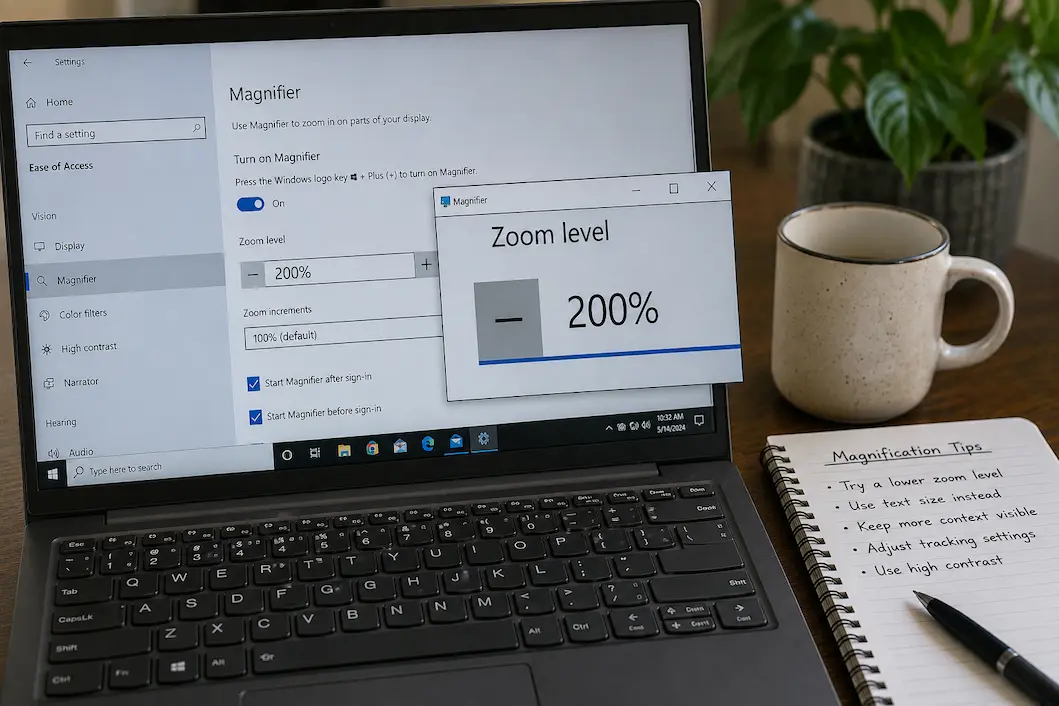
Screen magnification is designed to make small content easier to see, but increasing the magnification level does not always make a device easier to operate. At higher levels, a screen may show only part of a page or application at once, forcing you to move the magnified view repeatedly. Buttons can disappear outside the visible area, menus can become difficult to reach, and finding your place in a document can take more effort than reading the original smaller text.
This can be particularly frustrating because the magnification feature itself may be working exactly as designed. The problem is often the relationship between the zoom level, viewing area, pointer or touch movement, and the type of content being displayed. A setting that works well for reading a small label may be awkward when navigating a full application. The solution is therefore not always to turn magnification off. It may be better to use a lower level, change how the magnified area follows your movements, enlarge text instead, or use a different accessibility feature for particular tasks.
When More Magnification Stops Being Helpful
Magnification works by enlarging content beyond the amount that can fit on the physical screen. At a modest level, this technique can make text and interface elements easier to distinguish while leaving enough surrounding content visible to understand where you are. As the magnification level increases, that context gradually disappears. You may be able to read one sentence perfectly but lose sight of the heading, navigation controls, or the next part of the page.
This creates an important distinction between seeing something clearly and being able to use the interface comfortably. A very large button is easy to see when it is directly in front of you, but activating it can move other parts of the interface outside the magnified area, making navigation tedious. For many tasks, a slightly lower magnification level that keeps more context visible is more practical than the largest available setting.
Think about the task before choosing the level
Different activities can require different magnification settings. Reading a small piece of text, examining an image, navigating a settings screen, and working in a spreadsheet do not place the same demands on the display.
| What you’re doing | What usually matters most |
|---|---|
| Reading a small paragraph | Text size and line spacing |
| Examining a small detail | Temporary high magnification |
| Navigating an app | Keeping controls and context visible |
| Reading a webpage | Zoom plus sensible page layout |
| Working in a spreadsheet | Seeing enough rows and columns |
| Using maps or diagrams | Magnification with controlled movement |
This is why there is no single “correct” magnification percentage. The useful setting is the one that makes the current task easier without creating a second problem elsewhere on the screen.
Try a Lower Magnification Before Changing Everything Else
If the screen becomes difficult to navigate after enabling magnification, the first experiment should usually be simple: reduce the magnification level slightly and repeat the same task. You may find that the difference between a very high setting and a moderately high setting is substantial because a little more of the surrounding interface becomes visible.
This is especially useful when you are constantly panning across the screen. If you have to move left, right, up and down after almost every action, the magnification may be too high for that particular task. Lowering it can restore enough context to let you understand where controls are located without giving up the accessibility benefit altogether.
Don’t judge the setting by looking at a single piece of text. Test it using something you actually do on the device: open a menu, select an item, scroll through a page, move between fields, or return to the previous screen. Accessibility settings should be evaluated through the activity they are intended to support.
The Magnified Area Can Be More Important Than the Zoom Level
Many magnification tools do more than simply enlarge the screen. They also determine which part of the enlarged screen remains visible as you move a pointer, touch the display, or navigate with a keyboard.
For example, a magnifier that follows the pointer closely can be useful when examining small controls, but it may become distracting during normal navigation because the visible area keeps shifting. A magnifier that remains in one position can provide greater stability, but then you may have to move the magnified region manually when the information you need is elsewhere.
The exact controls differ between operating systems and devices, so don’t assume that every magnification feature behaves the same way. Look for settings related to the magnified region, tracking, panning, scrolling, or how the magnifier follows input. Changing that behavior can sometimes make a bigger difference than changing the magnification percentage itself.
A stable view can reduce unnecessary movement
If the display constantly jumps as you move a mouse or touch the screen, try a magnification mode that gives you more control over when the view moves, if your device provides one. The objective is to prevent the magnified area from becoming unpredictable.
This matters particularly when entering information. Imagine filling out a form while the magnifier follows every pointer movement. The field you’re typing in may be clear, but the surrounding labels and controls can repeatedly move in and out of view. A more stable magnified area may make the same form much easier to understand.
When Text Enlargement Is Better Than Full-Screen Magnification
Screen magnification is not always the best solution for small text. If the text is the main problem but the rest of the interface is already comfortable to use, increasing the operating system’s text size may preserve more of the surrounding interface.
Windows, for example, provides a Text size setting separately from Scale, allowing users to increase text without necessarily enlarging every interface element. Microsoft also provides Magnifier for situations where a larger temporary view is useful.
The same principle applies to phones and tablets. If your device provides a font-size or text-size control, test that before relying on a high magnification level for ordinary reading. A text-size adjustment can be less disruptive because you continue to see the entire interface rather than looking through a smaller magnified window.
This does not mean text enlargement is always superior. Some applications do not respond fully to system text settings, and some content cannot be resized independently. In those situations, magnification remains a useful alternative.
Websites Can Become Awkward at High Zoom
Websites are particularly sensitive to large zoom levels because they control their own layouts. Increasing browser zoom may make text easier to read, but it can also cause navigation menus to wrap, columns to stack, controls to move, or parts of the page to require additional scrolling.
That does not necessarily mean the browser’s zoom feature is malfunctioning. The website may simply have been designed with a layout that does not adapt well at larger sizes.
If one website becomes difficult at a particular zoom level, try reducing the zoom slightly and see whether the page remains readable while more of the navigation becomes visible. If the site offers a reading view or accessibility mode, that may be preferable for long articles because it can simplify the layout instead of merely enlarging it.
Watch for horizontal scrolling
Horizontal scrolling is one of the clearest signs that increased zoom may be making a website less practical. If every line of text requires you to move sideways to read it, the larger display is creating additional work.
For long-form reading, a narrower and simpler layout is often more comfortable than continuously increasing magnification. For a complex web application, however, you may need a different balance because reducing the layout too much could hide important controls.
Phones and Tablets Have a Different Constraint
On a touch device, magnification can become particularly awkward because the screen is already relatively small. A high magnification level may mean that a single touch moves you away from the content you were reading, while pinch gestures can conflict with the normal gestures used by the application itself.
Android provides accessibility magnification features that can enlarge part or all of the screen, while iPhone and iPad provide Zoom as an accessibility feature. The available gestures and controls depend on the operating system and version, so the best configuration may differ considerably between devices.
If you frequently use magnification on a phone, test it with the applications you use most. A setting that works well for reading a webpage may be frustrating inside a messaging application or banking app where buttons and fields are positioned close together.
Don’t Ignore the Size of the Display
A magnification setting cannot create additional physical screen space. On a small phone display, increasing the magnification substantially reduces how much information fits into the visible area. On a large monitor, the same level may feel much less restrictive.
This is why copying the same accessibility settings from one device to another is not always useful. A laptop connected to a large monitor may support a different combination of scaling and magnification than a phone used at close range.
Consider the physical viewing distance as well. A desktop monitor positioned farther away may need larger text than a phone held relatively close. Adjusting the screen to the way you actually use it can reduce the need for extreme magnification.
Magnification Can Make Navigation Feel Like “Searching”
One of the less obvious problems with high magnification is loss of orientation. When only a small portion of a page is visible, you may know what a particular button looks like but not where it sits in relation to everything else.
This becomes noticeable in applications with several toolbars, side panels and nested menus. You might enlarge the interface enough to read the controls but then spend extra time finding the next control because it is outside the current view.
When that happens, reduce magnification temporarily while navigating and increase it when you need to inspect something. If your device supports more than one magnification mode, this task-based approach can be considerably easier than keeping the display permanently zoomed in.
Consider High Contrast When the Problem Is Definition
Sometimes users increase magnification because small text appears difficult to distinguish, when the actual issue is contrast. Enlarging faint gray text can make it larger without making it substantially clearer.
Operating systems provide accessibility options that can change contrast, text weight, color presentation, or other visual characteristics. These controls can be useful when the letters are technically large enough but blend into their background.
The important point is to test the underlying problem. If you can read the text comfortably in bold or with stronger contrast, you may not need as much magnification. That can preserve more of the screen’s usable area.
When Magnification Interferes With the Mouse or Touch Input
On a computer, the magnifier and pointer can create an awkward interaction if the magnified view follows the pointer too aggressively. You may move the mouse to reach a control and discover that the visible area shifts at the same time, making the target harder to locate.
On a touchscreen, similar problems can occur when gestures both navigate the magnified area and interact with the application. The exact behavior depends on the device, but the underlying issue is the same: the method used to move around the enlarged screen can interfere with the task itself.
Try changing the magnification behavior rather than assuming you need a different zoom level. If your operating system offers options for how the magnifier follows the pointer, keyboard focus, or touch input, test those modes individually.
Use Magnification Selectively When Possible
You do not have to choose between “magnification always on” and “magnification never used.” Temporary magnification can be a better arrangement when most of the interface is already comfortable but certain content occasionally becomes too small.
For example, you might use normal display settings for everyday navigation and activate magnification when reading a small label, inspecting a diagram, or working with content that cannot be resized. This preserves the broader context of the normal interface while still giving you access to a much larger view when necessary.
If you need magnification throughout the day, however, constantly switching it on and off may become tiring. In that situation, finding a moderate permanent level combined with larger text or stronger contrast may provide a more comfortable compromise.
When the Application Itself Is the Limitation
Sometimes the problem is not the magnifier at all. An application may use fixed-size interface elements, poorly scaling controls, or a layout that becomes difficult to navigate when enlarged.
If text becomes clipped, controls overlap, or important information disappears at a reasonable accessibility setting, record exactly what happens. Test the same task at a lower magnification and, if possible, in another application that performs a similar function.
This comparison can help distinguish between an accessibility configuration problem and an application design problem. If the same magnification works well elsewhere but consistently breaks one application, changing more system settings may not solve it. The application may need an update or accessibility improvement from its developer.
A Practical Way to Find a Comfortable Balance
Instead of trying random combinations of settings, use the same task for each test. Choose something you regularly do, such as reading an article, opening a menu, filling in a form, or navigating a document.
Start at your current magnification level and notice what makes the task difficult. Then change one variable at a time:
- Lower the magnification slightly and repeat the task.
- If text is still too small, test a larger text-size setting.
- If text remains faint, try stronger contrast or bold text.
- If the view moves unpredictably, investigate magnifier tracking or positioning.
- If only a website is affected, test browser or site-specific zoom.
- If only one application breaks, check its own accessibility settings or look for an update.
- If the problem occurs only occasionally, consider temporary magnification instead of permanent enlargement.
The point of this process is not to find the highest level you can tolerate. It is to find the combination that requires the least effort during the tasks you actually perform.
What If You Still Need Very High Magnification?
There is nothing inherently wrong with using a high magnification level when you need it. The important question is whether the configuration allows you to navigate efficiently.
If you regularly need a tiny portion of the screen enlarged, additional accessibility tools may complement magnification. Text-to-speech, screen readers, larger text, stronger contrast, simplified reading modes, or application-specific accessibility controls can sometimes reduce how much information needs to be visually enlarged at once.
These tools are not interchangeable. A screen reader, for example, serves a very different purpose from magnification. But combining appropriate tools can reduce the need to solve every visual problem by increasing zoom.
Don’t Assume the Biggest View Is the Most Accessible
Accessibility is about making technology usable, not simply making everything larger. A display can be technically easier to see while becoming harder to operate because too little information fits on the screen.
The best setup usually balances clarity, context and control. You need enough enlargement to distinguish the content, enough surrounding information to understand where you are, and a predictable way to move through the interface.
That balance will differ from one person to another and from one device to another. A configuration that feels comfortable on a 27-inch monitor may be impractical on a phone, while a setting that works for reading may be frustrating when navigating a complex application.
The Right Magnification Setting Is the One You Can Actually Use
Screen magnification solves one problem—content that is difficult to see—but excessive magnification can introduce another by removing the context needed to navigate the interface. When that happens, increasing the zoom further is unlikely to help.
Start by reducing the magnification slightly and testing a real task rather than judging the setting from a static screen. If text remains the main difficulty, consider text-size controls. If the letters are large but faint, look at contrast or boldness. If the magnified area moves unpredictably, investigate how the magnifier tracks your input. For websites and individual applications, use their own zoom and accessibility controls where available.
The goal is not to make the smallest part of the screen as large as possible. The goal is to make information easier to see while keeping the device predictable and usable. When magnification, text size, contrast and the viewing area are balanced properly, accessibility becomes much less about fighting the screen and much more about getting the information you need.

ClarityTechHub Editorial Team publishes practical technology guides covering device compatibility, accessibility, home technology, maintenance, and technology setup. Our articles focus on explaining everyday technology problems clearly, comparing practical solutions, and helping readers make informed decisions about the devices and systems they use.